Open Apps in the sidebar. The list shows every app on your Mac with its real size: the app plus everything it keeps in your Library, like its containers, caches, and settings. That’s why an app that’s 2 GB in Finder can show 29 GB here.
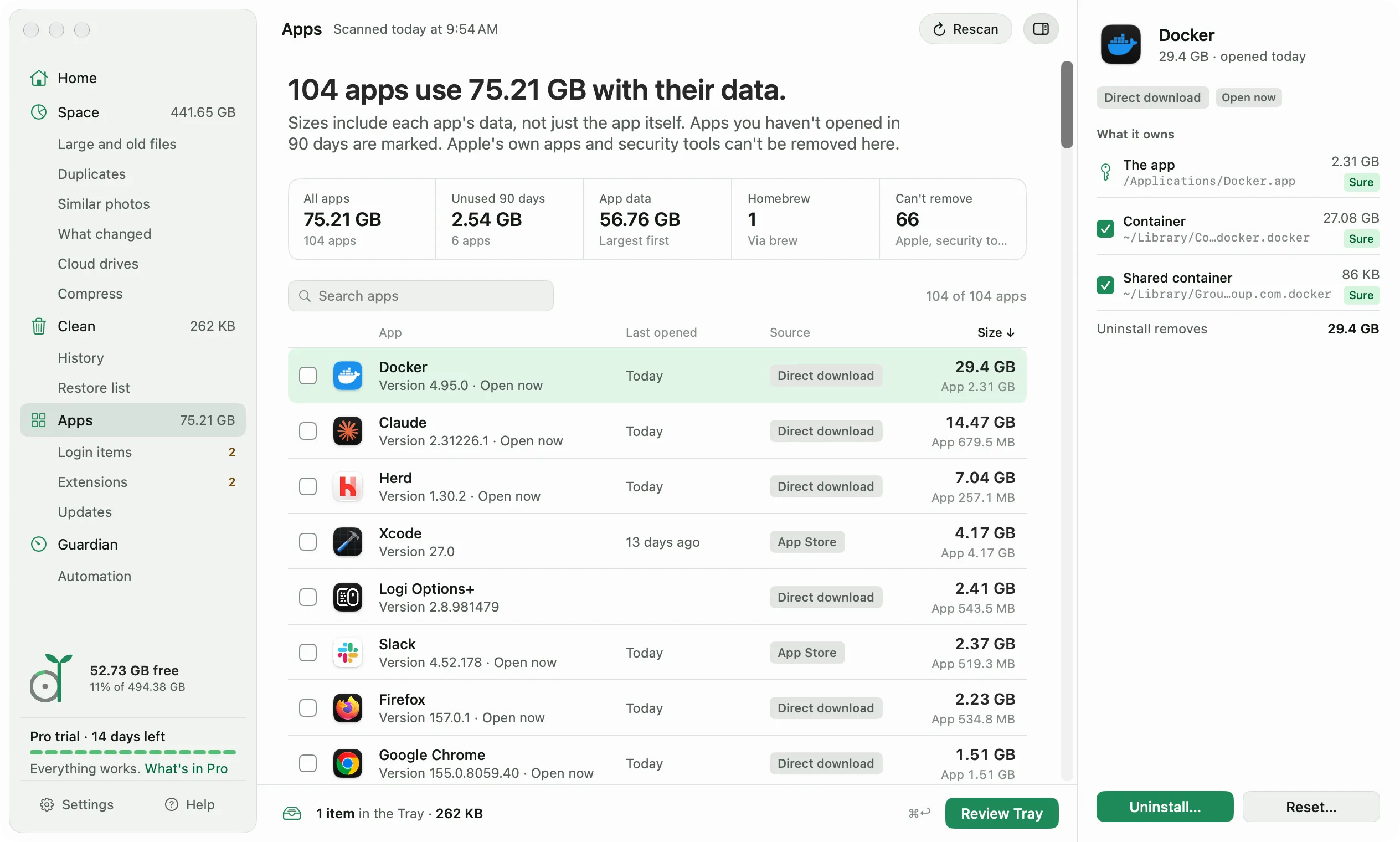
Select an app to see everything it owns in the side panel, with a size and how sure Diskling is for each part. Sure means the folder is named after the app’s own identifier. Anything less certain is shown but left unticked, and anything another app also uses is locked.
Apple’s own apps and security tools like antivirus can’t be removed here. Use the vendor’s own uninstaller for those.
What keeps running after you quit
Some apps leave parts running after you quit them, like a browser helper, a Finder extension, or an updater that starts with your Mac. When an app has any, the side panel lists them under Runs without the app, each marked Running or At login. If one is a login item, See in Login items takes you to it.
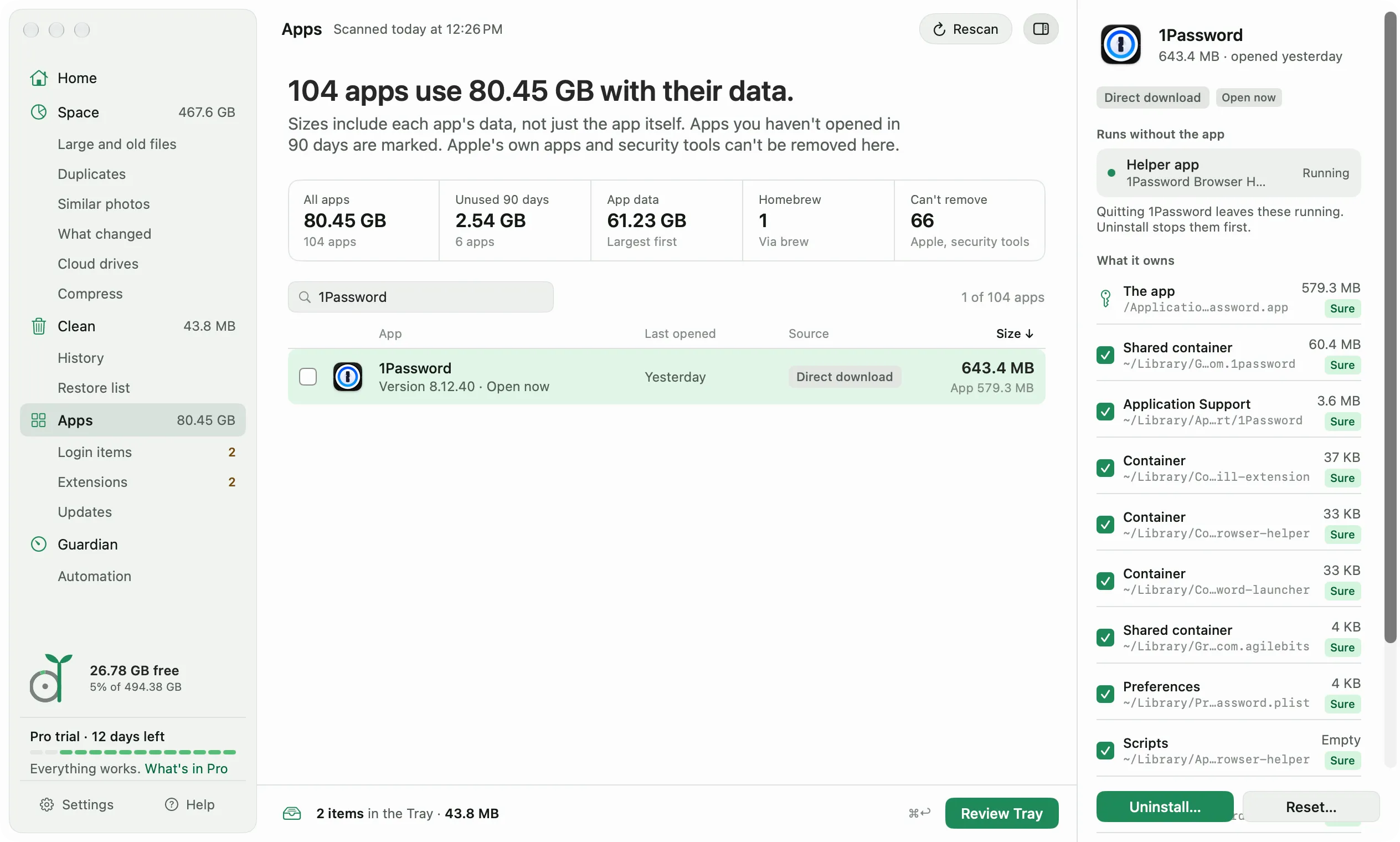
While an app is open, only its extensions and login helpers are listed. Helpers it starts itself quit with it, so they’re left out.
Uninstall an app
- Select the app and click Uninstall in the side panel.
- Read the review. It starts with anything that keeps running, which Diskling stops first, then lists the app, its data and settings, and its caches, with where each one goes.
- Click Uninstall.
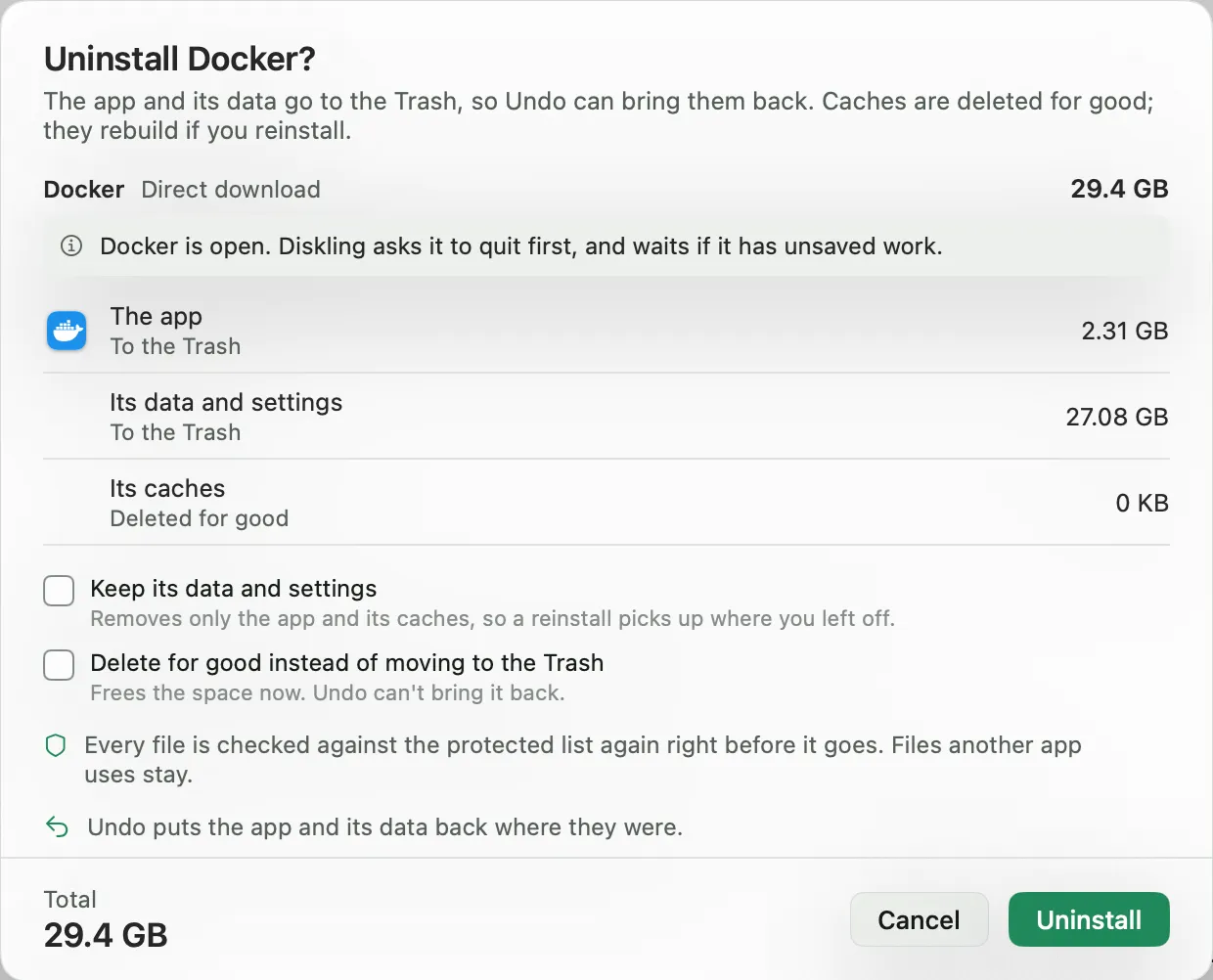
If the app is open, Diskling asks it to quit first and waits if it has unsaved work. The app and its data go to the Trash, so Undo can put them back. Caches are deleted for good, since the app rebuilds them if you reinstall.
Two options change that:
- Keep its data and settings removes only the app and its caches, so a reinstall picks up where you left off.
- Delete for good instead of moving to the Trash frees the space now. Undo can’t bring it back.
Right before anything goes, each file is checked against the protected list again. Your chat histories stay, even when you remove the chat app, and files another app uses stay too.
Apps you installed with Homebrew are removed through Homebrew, so it knows they’re gone.
Settings that still mention the app
After an uninstall, the result lists settings files that still mention the app you removed. Diskling checks your zsh, bash, and fish startup files, and the settings of Claude Code, Codex, Cursor, and Gemini. Each match shows the file and the line number only. The line itself is never shown, since it can hold a token, and Diskling never edits these files. Open the file yourself and decide what to keep. This check is free.
Other ways to start an uninstall
You can also start from outside Diskling:
- Drag an app from Finder onto the Diskling window.
- Right-click an app in Finder and choose Services, Uninstall with Diskling.
Both open the same review. Nothing is removed until you confirm it.
Apps you already deleted
If you’ve already dragged an app to the Trash, its data is still on your disk. Diskling Guardian can watch the Trash and tell you what an app left behind when you delete it, with a button to review and remove it. Turn it on in Guardian, Watch the Trash for apps.
Free and Pro
Uninstalling one app at a time is free. Uninstalling several apps in one review, App Reset (which clears an app’s caches and settings without removing it), and the Trash watch are part of Pro. See your license for how the trial works.