Most people find out their disk is full when macOS refuses to install an update or a download stops halfway. Guardian is there so you hear about it days earlier, with time to decide what goes.
Turn it on
Open Guardian in the sidebar and click Turn on. Diskling adds Diskling Guardian to your Login Items, so it starts with your Mac and keeps running after you quit Diskling.
If the status line says Guardian is switched off in System Settings, click Open Login Items and turn Diskling Guardian back on there. macOS lets you switch off any login item, and Guardian can’t start again until you do.
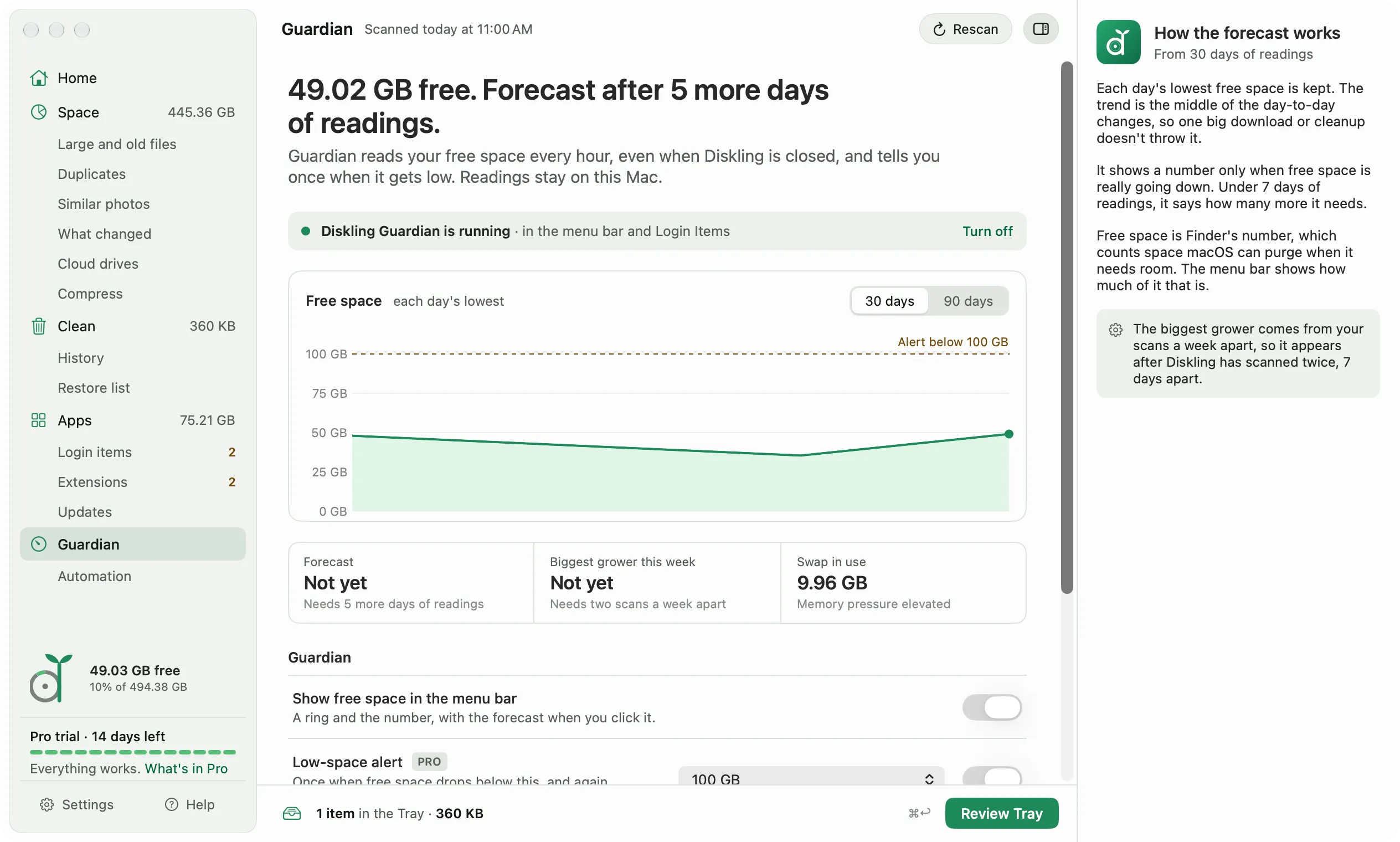
Guardian only reads free space and memory numbers from macOS. The readings stay on your Mac.
The menu bar
With Show free space in the menu bar on, a ring and the free space sit in your menu bar. Click it for the details:
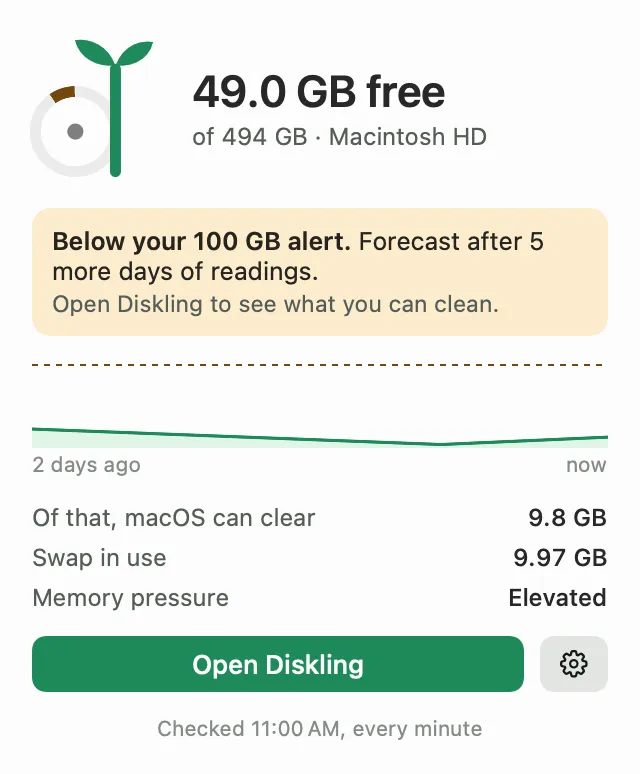
The ring stays in the menu bar after you quit Diskling, since Guardian keeps watching. To hide it, turn off Show free space in the menu bar, on the Guardian screen or in Settings, General. Alerts still come without it. Settings, General also has Show Diskling in the Dock: turn it off and you open Diskling from the ring instead. One of the two always stays on, so there’s always a way back in.
The number is the same free space Finder shows. Part of it is space macOS can clear when it needs room, like local Time Machine snapshots, and the popover says how much. The menu bar checks every minute. The gear button opens these settings in Diskling.
Alerts
Each alert has its own switch on the Guardian screen.
- Low-space alert tells you once when free space drops below your line, and again only after it has gone back up. The default line is 10% of your disk or 25 GB, whichever is less. You can pick 15, 50, or 100 GB instead.
- Swap alert tells you when memory is tight and the disk has too little room left for swap. That mix is what makes a Mac freeze.
- Weekly summary sends one note on the day you pick, like how much space you gained that week and what grew the most.
- Watch the Trash for apps tells you what an app left behind when you drag it to the Trash, with a button to review it. Uninstall apps explains what gets found.
macOS asks once whether Diskling Guardian can send notifications. If you say no, the alerts can’t reach you, though the menu bar still shows the numbers.
The forecast
The forecast says when your disk will be full if things keep going the way they are. It keeps each day’s lowest free space and looks at the middle of the day-to-day changes, so one big download or one cleanup doesn’t throw it off.
It needs 7 days of readings first. Until then the Forecast card says Not yet and how many more days it needs. After that it shows a time, like ~3 weeks, only when free space is really going down, with how much you lose a day. Otherwise it says Steady, Growing, or Over a year.
The Biggest grower card needs time too. It compares two scans 7 days apart, so it fills in after Diskling has scanned twice a week apart. Scheduled scans take care of that for you.
Maintenance
Guardian, Maintenance has three tasks for things macOS sometimes gets stuck on. Each one says what it fixes, runs only when you click it, and shows what changed afterward.
- Thin local Time Machine snapshots frees the space Time Machine’s hourly snapshots take on your disk. Diskling measures free space before and after. Backups on your backup disk aren’t touched, but until the next backup you can’t restore files from the hours those snapshots covered.
- Rebuild the Spotlight index is for when search stops finding files you know are there. macOS asks for your password, and searching is slow for a few hours while Spotlight reads the disk again.
- Clear old entries from Open With removes macOS’s records of apps that are gone, which is what puts duplicates and missing apps in Finder’s Open With menu. Apps you still have keep their entries.
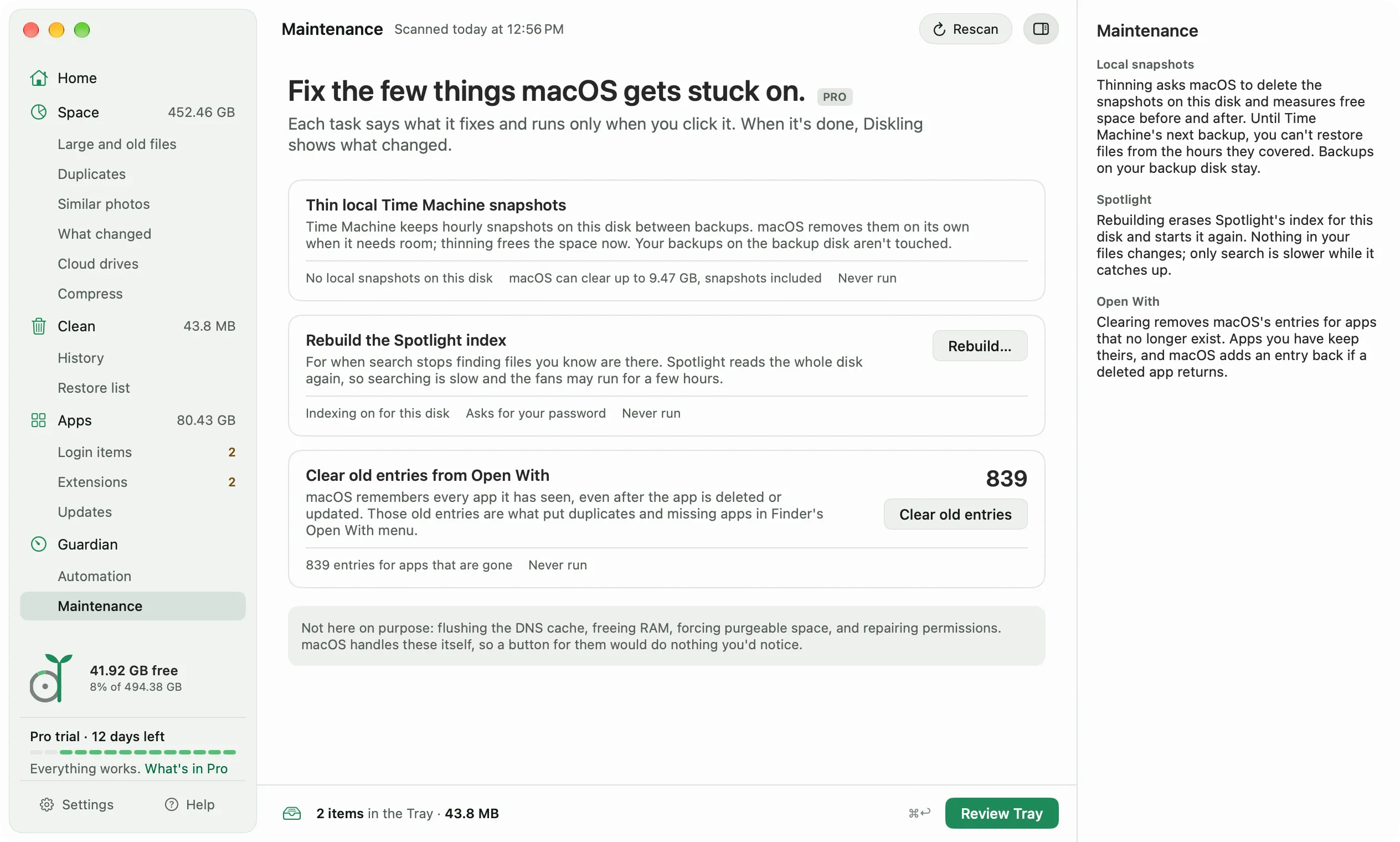
Flushing the DNS cache, freeing RAM, forcing purgeable space, and repairing permissions aren’t there on purpose. macOS handles those itself, so a button for them would do nothing you’d notice.
Free and Pro
The menu bar ring, the free space chart, and swap in use are free. The alerts, the forecast, the biggest grower, the weekly summary, the Trash watch, and Maintenance are part of Pro. See your license for how the trial works.