Duplicates
Open Duplicates under Space. The check starts on its own and looks through Desktop, Documents, Downloads, Movies, Music, Pictures, and Public.
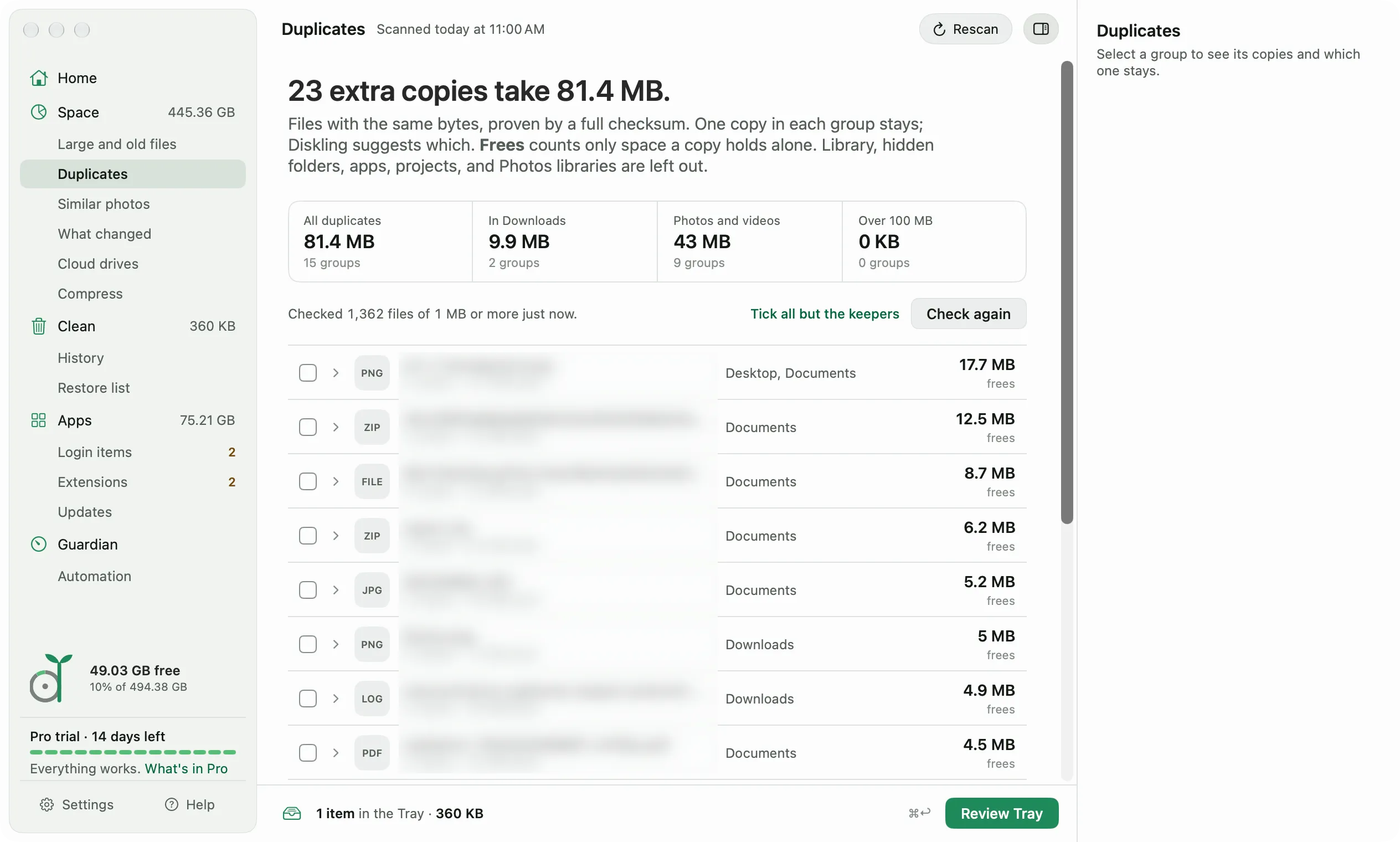
Two files count as duplicates only when every byte matches. Diskling compares sizes first, then the start and end of each file, then reads the whole file to prove it. Files under 1 MB, Library, hidden folders, apps, projects, and Photos libraries are left out.
In each group, one copy stays. Diskling picks the oldest one, and the side panel says why. To keep a different one, select it and click Keep this one instead.
- Expand a group and tick the copies you don’t need. Or click Tick all but the keepers.
- Click Review Tray, check the review, and click Clean.
Copies go to the Trash, so Undo brings them back. Right before they move, Diskling checks the kept copy is still there and still the same. If it isn’t, the copies stay.
The Frees column counts only the space a copy holds on its own. On a Mac, a copied file can share its space with the original, so removing it frees nothing. Tick all but the keepers leaves those out.
Copies in Documents and Desktop can go too, since an exact copy stays. Everything else in those folders stays protected, as it is everywhere in Diskling.
Similar photos
Open Similar photos under Space. It looks at the pictures in Pictures, Desktop, Downloads, and Documents, and groups bursts, near-identical screenshots, and resized copies. It compares what the pictures show, not their bytes. Exact copies are in Duplicates instead.
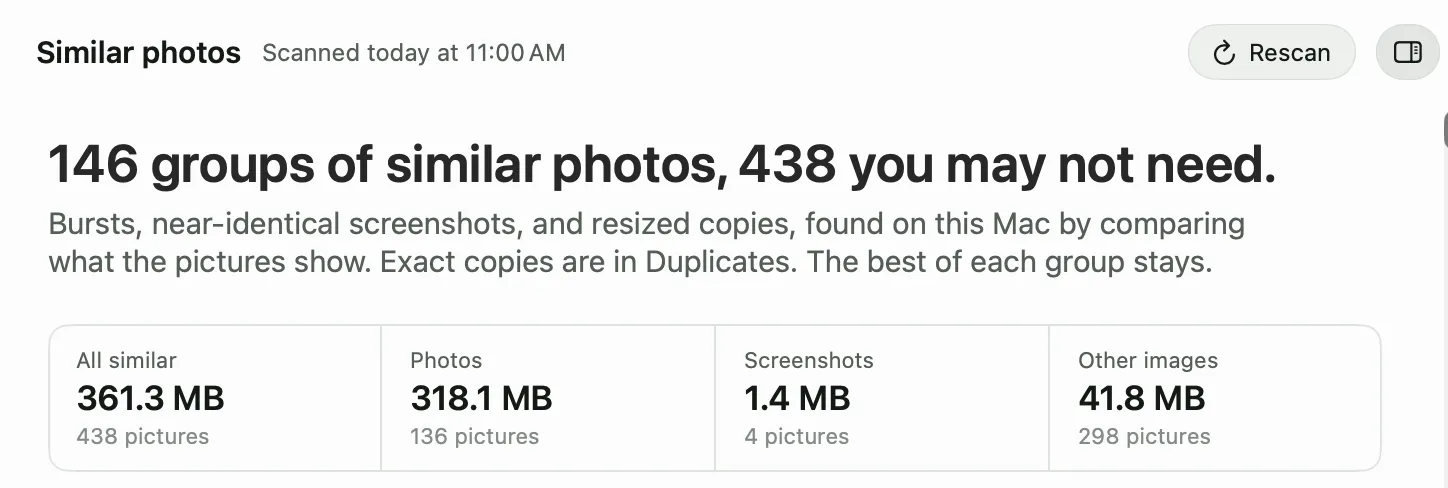
The comparison runs on your Mac with Apple’s Vision framework. Your pictures never leave it.
Each group marks one picture as Best: the one with the most pixels, then the newest edit. To keep a different one, select it and click Keep this one instead. Double-click a thumbnail to see it full size.
- Tick the pictures you don’t need, or click Tick all but the best.
- Click Review Tray, check the review, and click Clean.
They go to the Trash, so Undo brings them back. Right before they move, Diskling checks the best picture is still there. If it isn’t, the others stay.
Diskling never reads your Photos library. Photos has its own Duplicates album, under Utilities in its sidebar, and the Open Photos button takes you there.
Free and Pro
Both screens are free to look through. Removing duplicates and similar photos is part of Pro. See your license for how the trial works.