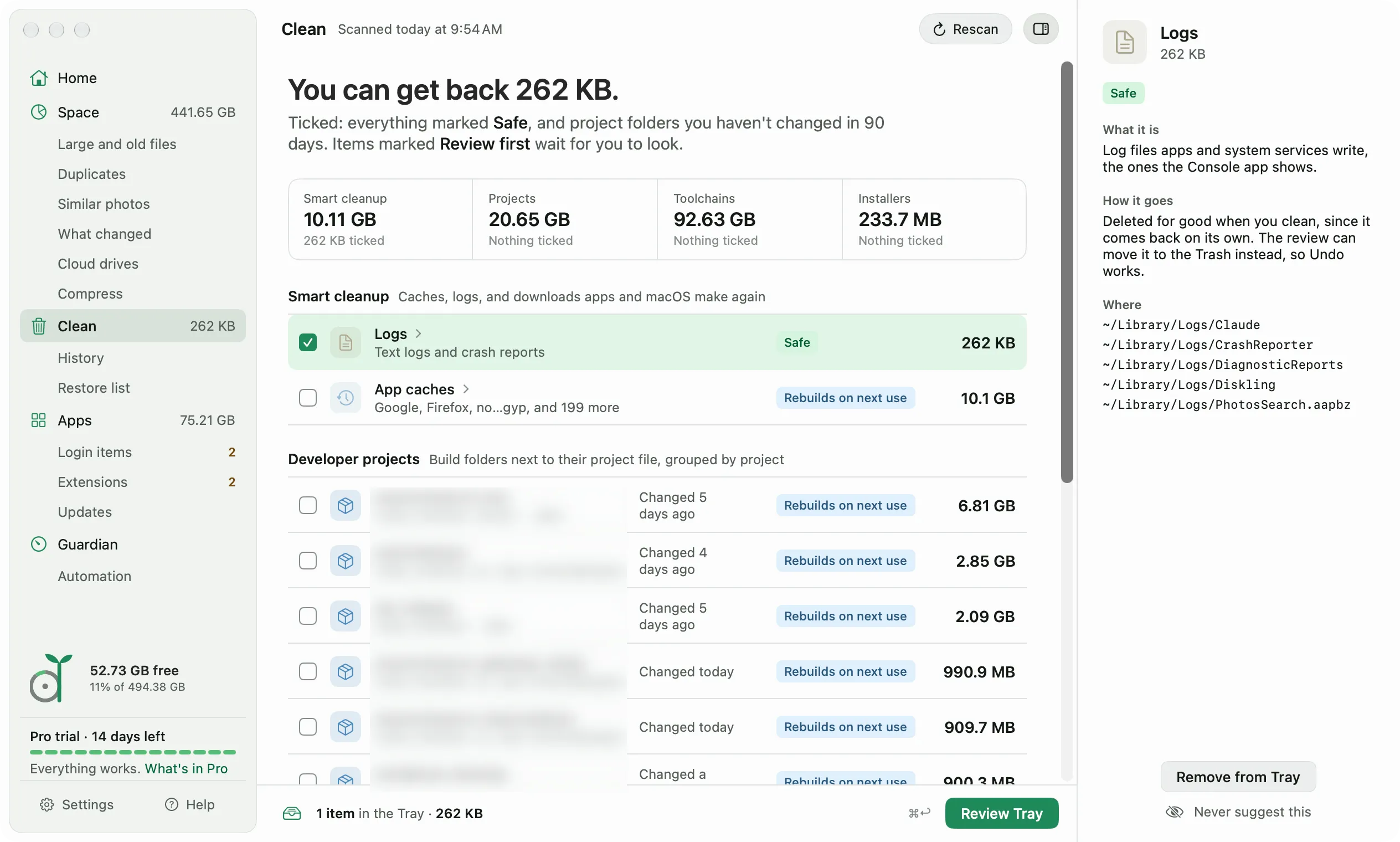
Open Clean in the sidebar. The headline says how much space the ticked items would give back, and the strip under it splits everything Clean found into Smart cleanup, Projects, Toolchains, and Installers.
What gets ticked for you
Diskling ticks two kinds of items on its own. Everything marked Safe, like old logs and download caches. And build folders in projects you haven’t changed in 90 days, like node_modules in an old project.
Everything else waits for you. Items marked Review first are never ticked for you, because they can hold something you made or want to keep. Read the side panel before you tick one: it says what the item is, what happens if you remove it, and every folder it covers.
If you never want to see an item again, click Never suggest this in the side panel. Diskling still counts it, it just stops offering it. You can bring it back from Settings, Scanning, Never suggested.
Leftovers from developer tools and macOS
Besides caches, logs, and build folders, Clean looks for five things that developer tools and macOS leave behind. Previewing them is free, and removing them is part of Pro. Only Device firmware is ticked for you, since it’s marked Safe.
- Simulator data: one line for each simulator that’s shut down. It covers what a simulator collects while it runs, like downloaded system assets, logs, caches, and the lock screen wallpapers it builds again at its next start. The simulator’s apps and their data stay. Each simulator is checked again right before its files go, and one that’s running is skipped.
- Old device support: Xcode’s debug files for each system version of a device you’ve connected. The newest version for each platform stays, and Xcode copies an older one again the next time a device running it connects. Nothing here goes while Xcode is open.
- Device firmware: iPhone, iPad, and Apple TV restore files that Finder downloaded. Finder downloads the software again when you restore or update a device. Device backups are stored elsewhere and are never touched.
- Browser copies: Chrome, Brave, Edge, and other Chromium browsers copy themselves into a temporary folder during an update, and some copies stay until you restart. Diskling offers copies that are a day old or more, and only while that browser is closed. A copy shares its space with the installed browser until the browser updates, so Diskling counts only what removing it frees, which is often nothing.
- Old wallpaper renders: macOS keeps every picture it draws for your desktop, at each display size, and never deletes them. Diskling offers renders that are a week old or more and keeps the newest one for each display size, since those may be on screen.
The Tray
Ticking an item puts it in the Tray, the bar at the bottom of every screen. Items from Space, Apps, and the other tools land in the same Tray, so you review everything at once.
Review before anything goes
Click Review Tray, or press ⌘↩. Nothing is removed until you confirm here.
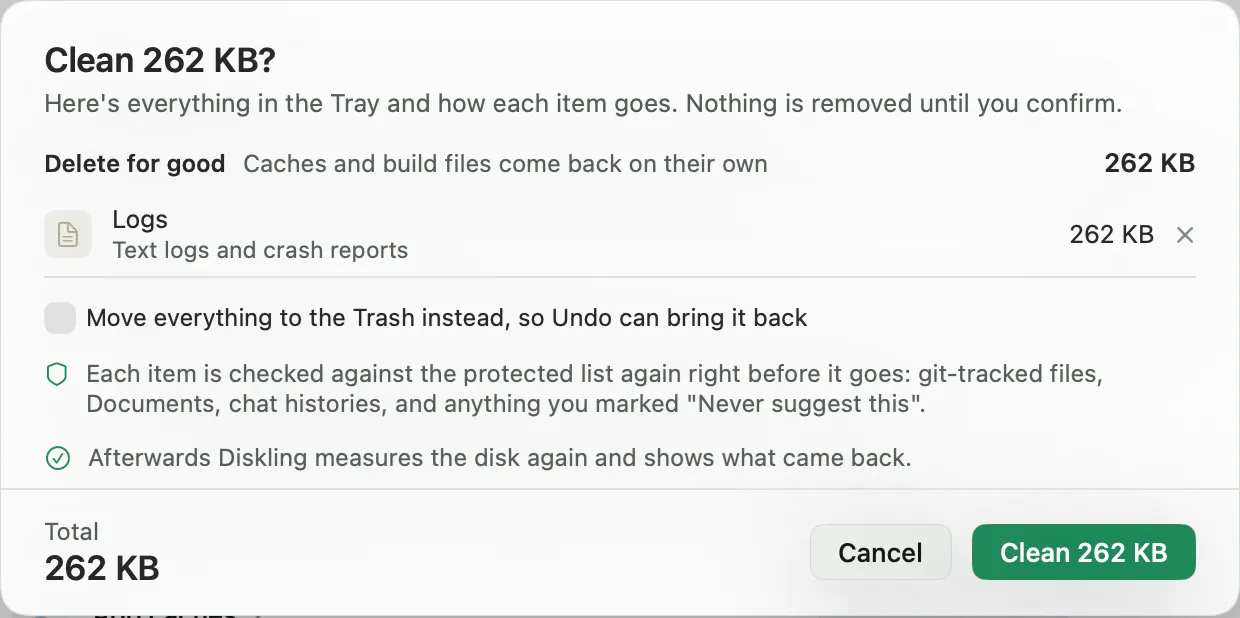
The review groups each item by how it goes:
- Delete for good: caches and build files that come back on their own. Keeping them in the Trash would only hold on to the space.
- Move to the Trash: anything else, so Undo can bring it back.
- Run the tool’s own command: for things a tool manages itself, like Docker images or iOS simulators. The full command is shown before it runs.
Want a way back for everything? Tick “Move everything to the Trash instead, so Undo can bring it back”.
Right before each item goes, Diskling checks it against the protected list one more time. Files in a git repository, your Documents, chat histories, and anything you marked Never suggest this are skipped, even if they made it into the Tray. A cache waits while its app is open. Log folders stay and only what’s inside them goes, and the Trash on other drives is never touched.
After a cleanup
When it’s done, Diskling measures your disk again and shows how much space really came back, not an estimate. If something didn’t free the space you expected, it says so and tells you where it is.
Sizes count only what removing frees. A file that’s an APFS clone of another, like the copies pnpm and Finder’s Duplicate make, counts only its own blocks, and copies removed together count their shared space once. After a Docker prune, Docker hands the space back to macOS over a few minutes, so the result says so and History measures it again five minutes later.
Items that went to the Trash still count against your disk until the Trash is emptied. From the result you can:
- Click Undo to put everything back where it was.
- Click Delete for good to delete only what this cleanup moved to the Trash. Anything else already in your Trash stays.
Every cleanup lands in Clean, History with the space it gave back, so you can see what went and when.
Free and Pro
Everything above is free to look at. On Free you remove things one at a time: pick one item in Space and move it to the Trash. Cleaning several items in one go, and the tools like Compress and Offload, are part of Pro. Your license has the details.
To clear browser history, cookies, and recent items instead of space, use Privacy. It’s under Clean in the sidebar, and what it clears is deleted for good instead of going to the Trash.
Developers often find the most space in old iOS simulators. Delete old iOS simulators without breaking Xcode walks through that one, command by command.