Full Disk Access is a macOS permission. Without it, folders like Mail, Messages, Safari, and the private containers other apps keep in your Library are closed to every app, Diskling included. On most Macs those folders hold gigabytes of caches and old downloads.
Diskling only reads names and sizes there. It never opens your mail or messages, and the list of what it found stays on your Mac.
Turn it on
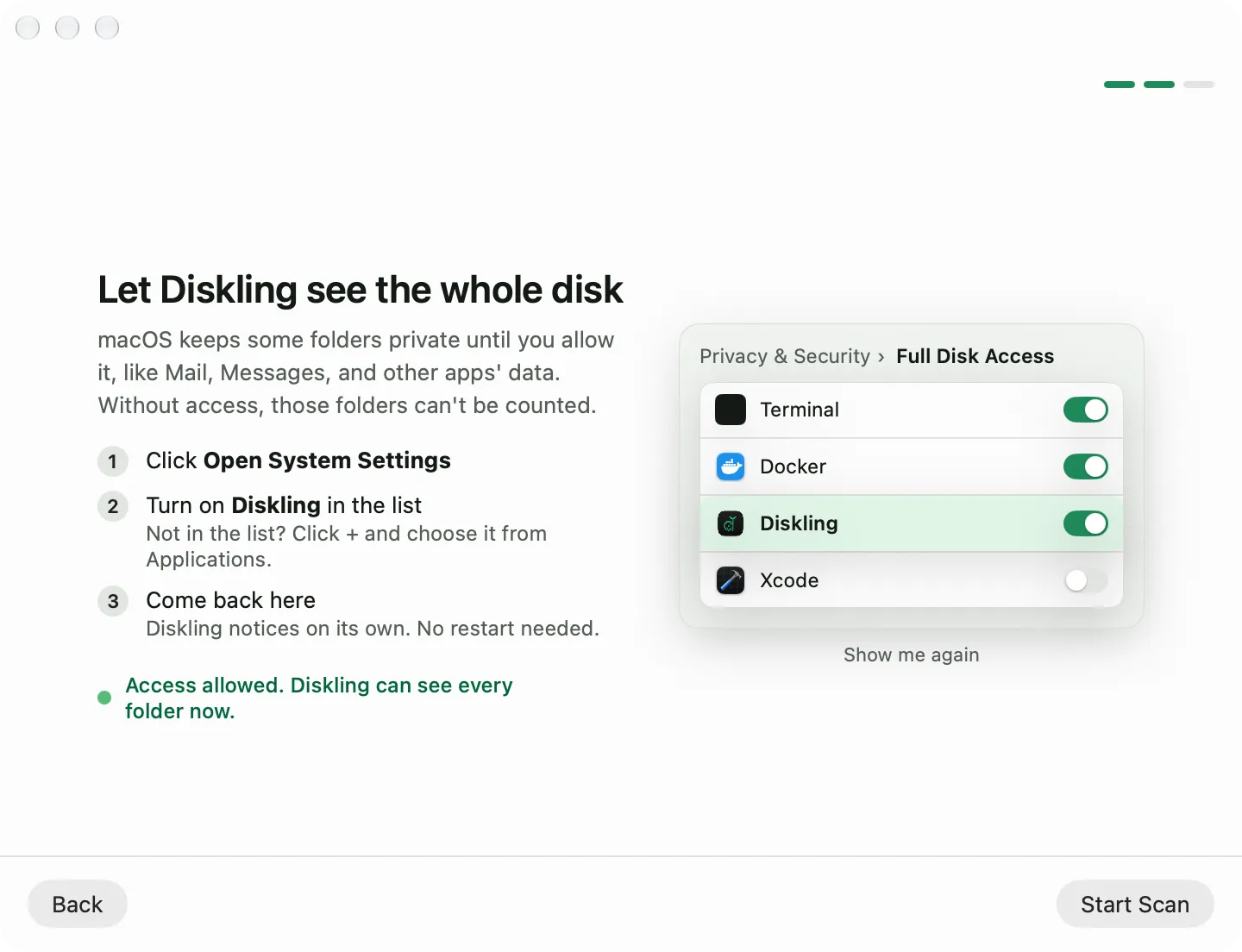
- In Diskling, open Settings with ⌘, and go to Scanning. Click Open Privacy Settings. On the welcome screens, click Open System Settings instead.
- System Settings opens at Privacy & Security, Full Disk Access.
- Turn on Diskling. macOS asks for your password or Touch ID.
- Come back to Diskling. It notices the change on its own, so there’s no need to restart it.
If Diskling isn’t in the list, click the + button under it, open Applications, choose Diskling, and turn it on.
Once access is on, Diskling scans again so the folders it couldn’t see before are counted. The “Not counted” part of the bar on Home gets much smaller.
Check that it’s on
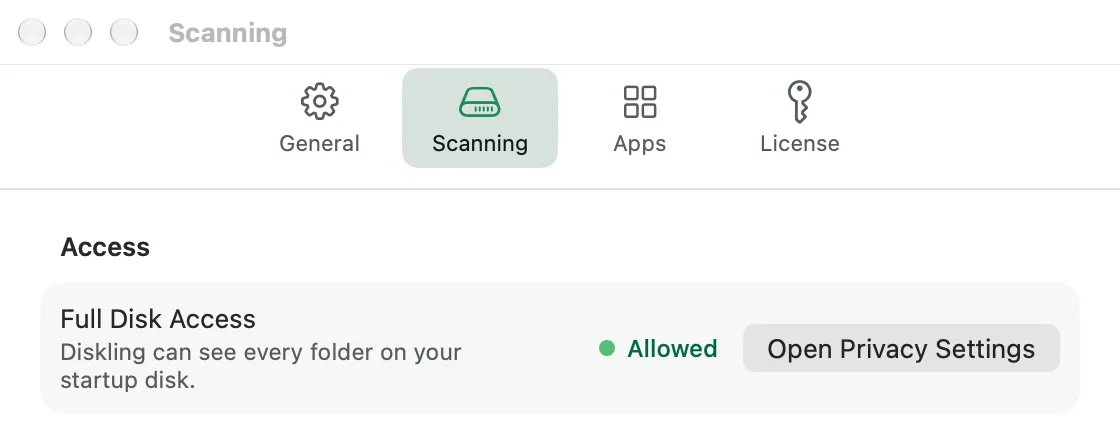
Settings, Scanning shows the state at any time. Allowed means Diskling can see every folder on your startup disk. Not allowed means some folders stay private, and the scan leaves them out.
Without Full Disk Access
Diskling still works without it. You still see your disk, your apps, and everything in your own folders. A few things change:
- Space in protected folders shows as “Not counted” on Home instead of under an owner.
- App containers can’t be cleaned, and the result after a cleanup says so instead of failing quietly.
- In Apps, an app’s containers show “Needs Full Disk Access” in the side panel, so you know an uninstall would leave them behind.
You can turn it off again from the same switch in System Settings. Diskling scans again so its numbers match what it can see.
Next, read how Clean decides what’s safe to remove.