The trial and Free
Every Mac starts with 14 days of Pro. You don’t need a card or an account. The days left show at the bottom of the sidebar and in Settings, License.
When the trial ends, Diskling switches to Free. Nothing is removed and nothing you set up is lost. Free still scans your disk, explains every owner, shows the map and your apps, and lets you remove things one at a time.
Pro adds the parts that save you time:
- Cleaning many items in one go, and the developer cleanup.
- Uninstalling several apps at once, and App Reset.
- Compress, Offload, and making iCloud files online-only.
- Low-space and swap alerts, the forecast, the weekly summary, and Maintenance.
- Privacy, which clears browser history, cookies, and recent items.
- Scheduled scans, rules, Shortcuts actions, and the command line tool.
- Your full history with charts, and What changed between scans.
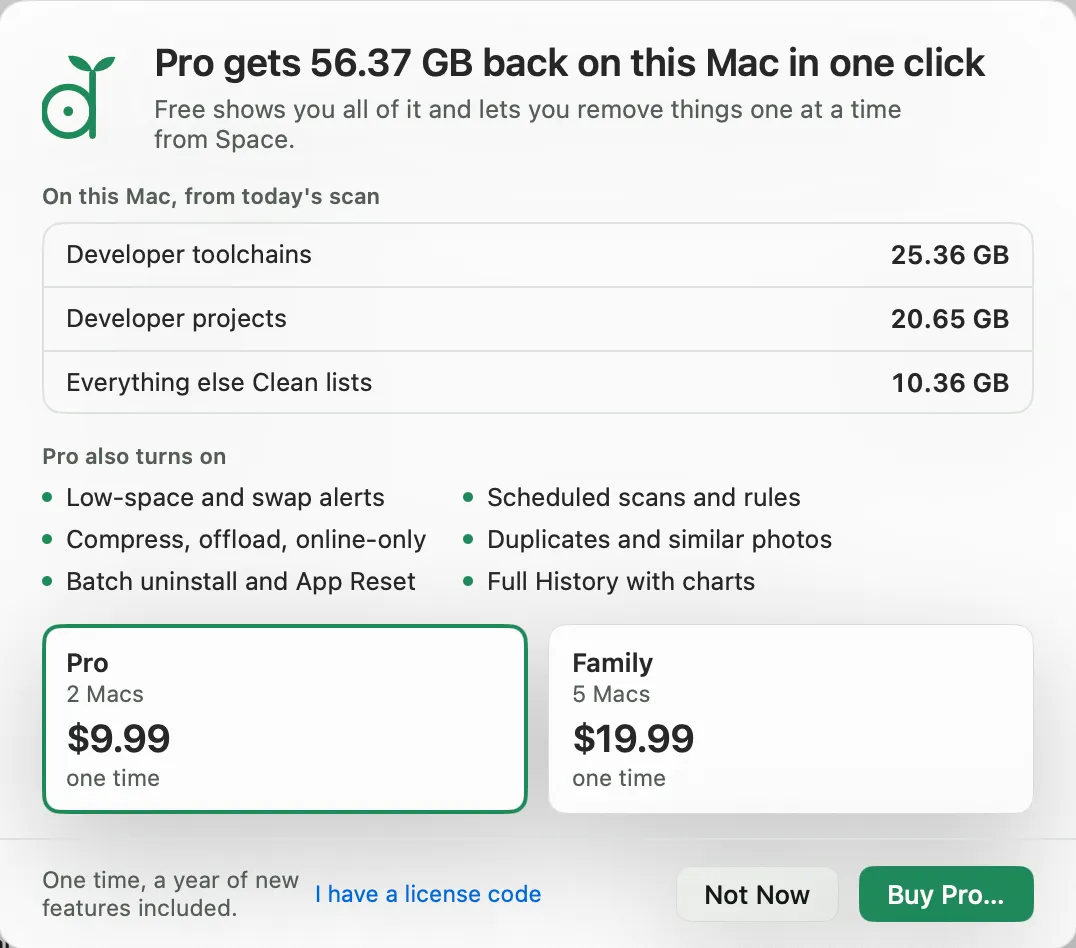
When you click something that needs Pro on Free, Diskling shows what Pro would do on your Mac before asking for anything.
Prices
Pro is $9.99 for 2 Macs, and Family is $19.99 for 5 Macs. Both are one-time purchases that include a year of new features. After that year Diskling keeps working, and another year of new features is $6.99 if you want it. Nothing renews on its own.
The pricing page compares Free and Pro side by side.
Activate your license
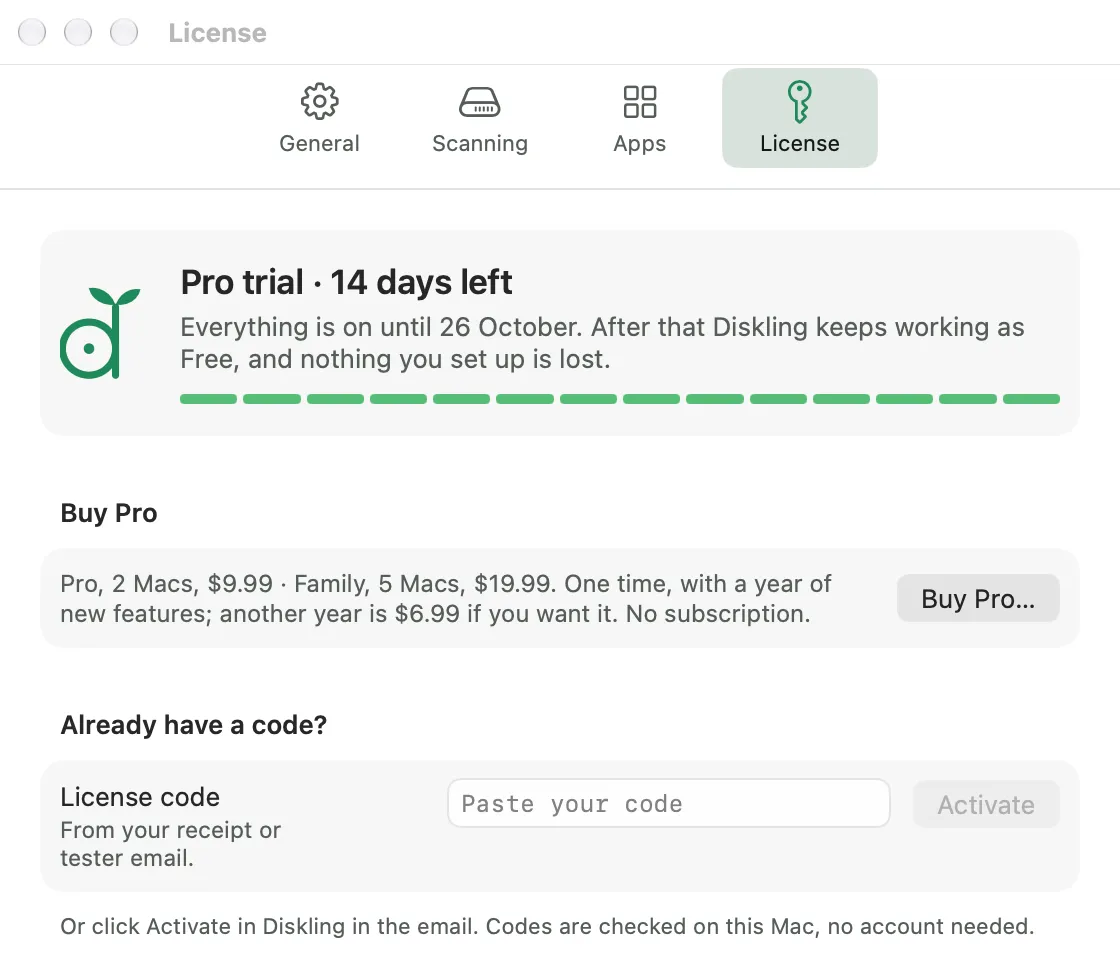
There are two ways to activate:
- Click Activate in Diskling in the email with your code. Diskling opens and shows who the license is for and when it ends. Click Activate.
- Or open Settings with ⌘,, go to License, paste your code into the License code field, and click Activate.
Codes are checked on your Mac, so you don’t need an account. Once a code is active, Diskling keeps it in your Mac’s Keychain and only ever shows its last four characters. If you need the full code again, it’s in the email it came in.
If Diskling says a code isn’t valid, check that you copied all of it. Codes are long, and it’s easy to miss the end.
Move to a new Mac
Your license covers 2 Macs with Pro, or 5 with Family. To move it:
- On the old Mac, open Settings, License, and click Deactivate This Mac. That Mac switches to Free.
- On the new Mac, activate the same code from your email.
If you set up the new Mac with Migration Assistant, Diskling comes along with your license. On the first launch it notices it’s on a different Mac and asks once whether to move the license there. Click Move License Here. Not Now leaves it for later, and Settings, License still offers it.
Lost the old Mac, or it won’t start? Contact us with the last four characters of your code, and we’ll free that Mac so your code works on the new one.