Open Automation in the sidebar, under Guardian. It has four parts: scheduled scans, rules, Shortcuts actions, and the command line. This page covers the first two. The other two have their own pages, Shortcuts and the command line.
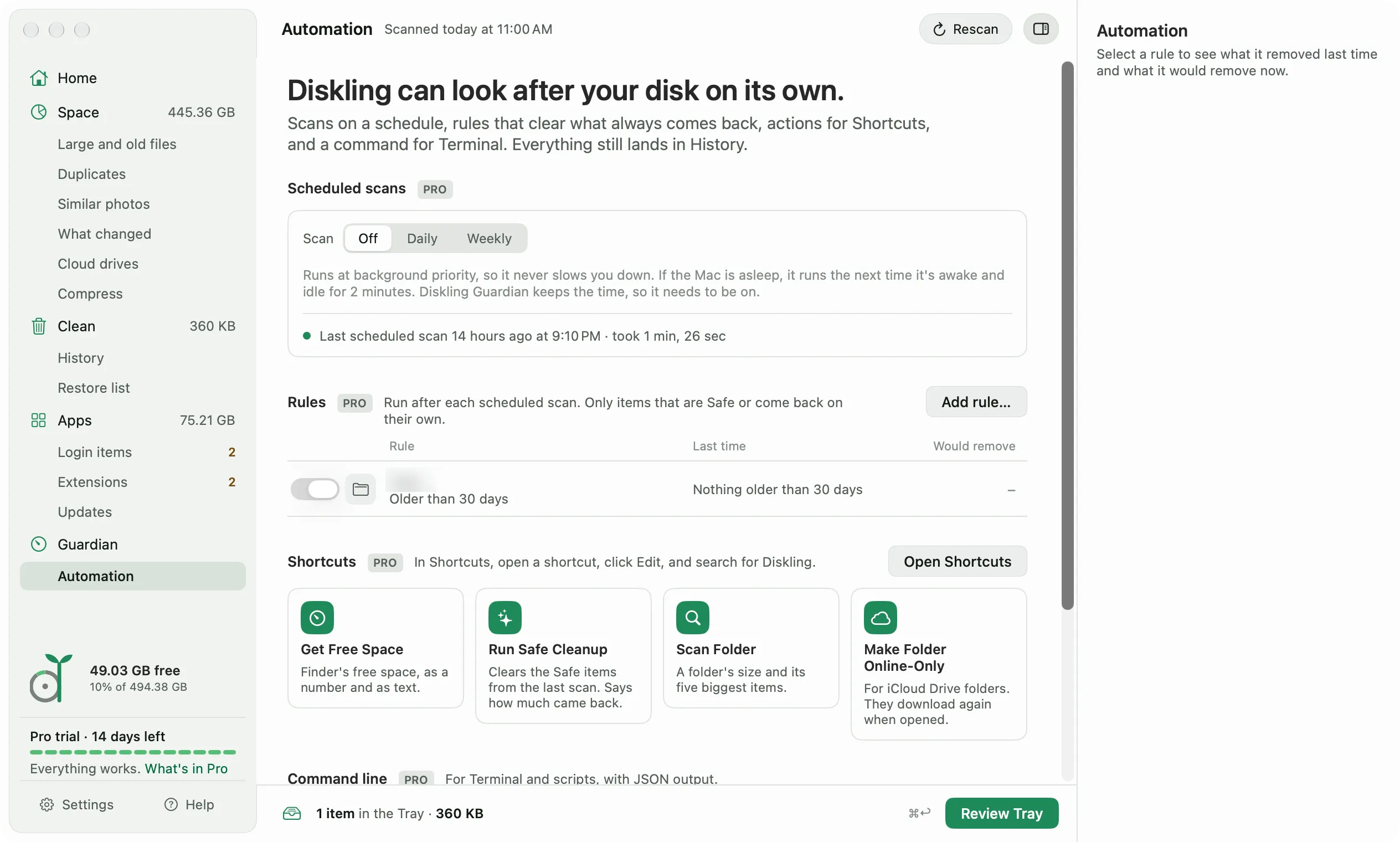
Scheduled scans
- Under Scheduled scans, pick Daily or Weekly. Off is the default.
- For Weekly, pick the day. Monday is the default.
- Pick the time. 3:00 AM is the default.
- Turn on Only when plugged in if you don’t want a scan to run on battery.
A scheduled scan runs at background priority, so it doesn’t slow down what you’re doing. If your Mac is asleep at that time, the scan runs the next time it’s awake and has been idle for 2 minutes.
Diskling Guardian keeps the time, so it needs to be on. If it’s off, nothing runs on a schedule. Watch free space with Diskling Guardian shows how to turn it on.
The line under the schedule says when the last scheduled scan ran and how long it took.
Rules
A rule clears one item after each scheduled scan. It’s for things that come back on their own, like a tool’s download cache or the build folders in an old project.
- Click Add rule.
- Pick an item from the list. Only items marked Safe or Rebuilds are offered.
- Pick an age: Any age, or older than 7, 30, or 90 days. 30 days is the default.
- Read the line at the bottom. It says what the rule would remove from your last scan, in bytes and items.
- Click Add Rule.
Some items are cleared by their own tool, which decides what goes. Those don’t take an age.
Simulators, Docker, leftovers from removed apps, and installers aren’t offered. Each of those needs a look before anything goes, so they stay in Clean where you review them.
What a rule removes
The Rules list shows each rule with what it removed last time and what it would remove now. Select a rule to see the side panel, with the files from the last run. Run now clears it from your last scan without waiting, and Edit and Delete are under it. The switch on the left turns a rule off without deleting it.
Rules delete what they clear for good instead of moving it to the Trash. Everything a rule clears is in Safe or Rebuilds, so the app or tool makes it again when it needs it. Each run lands in History with the space it gave back, so you can always see what went and when.
Right before anything goes, each file is checked against the protected list, the same as a cleanup you start yourself.
Free and Pro
Scheduled scans and rules are part of Pro. On Free, the Automation screen still shows them, and turning one on opens the upgrade sheet. See your license for how the trial works.