Open Space in the sidebar, or press ⌘2. It opens on your home folder, since that’s where most of your space usually is.
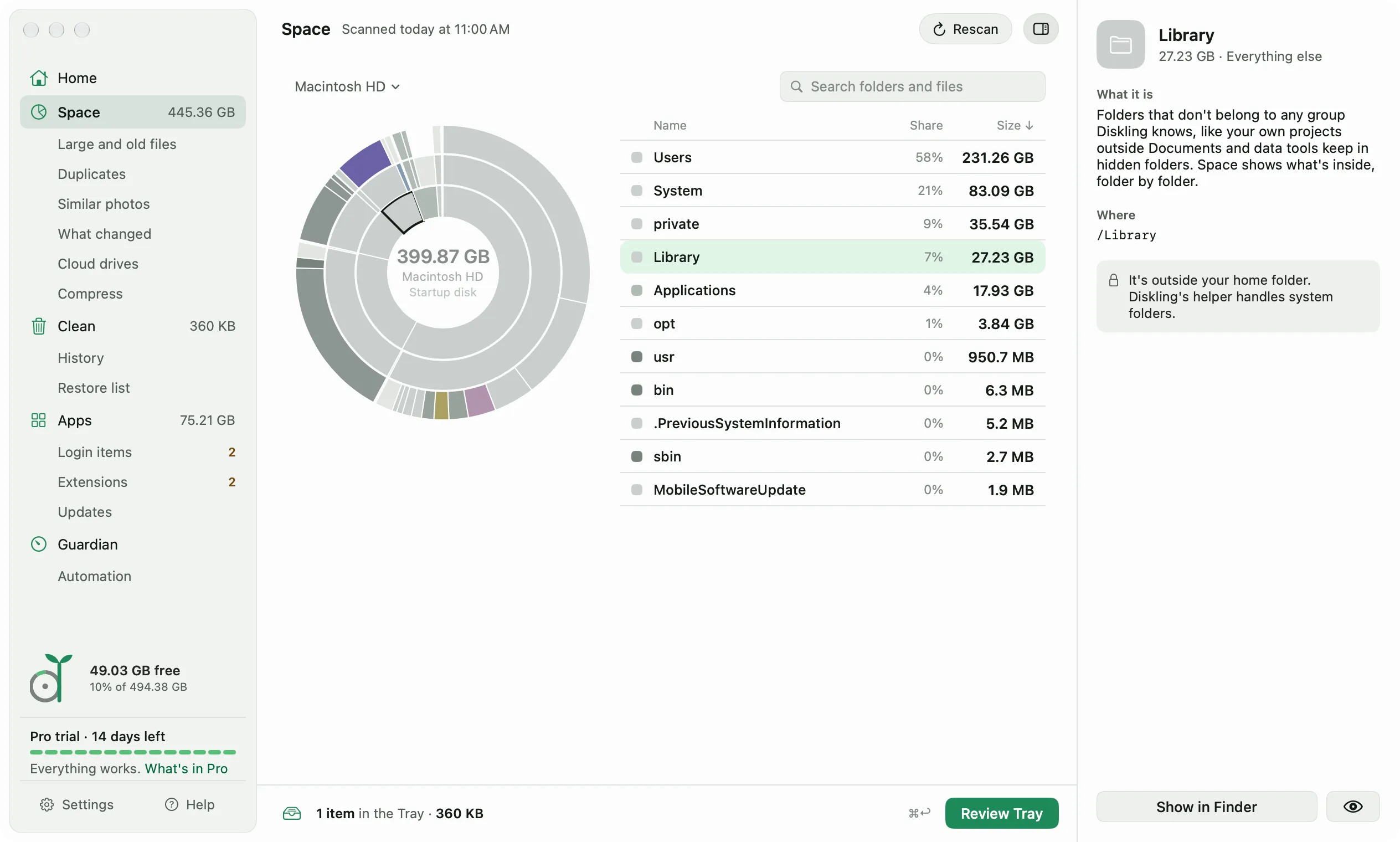
Read the map
The rings show three levels of folders at once. The inner ring is the folder you’re in, and each ring out is one level deeper. Slices too small to draw join one Smaller items slice. Hover a slice to see its size, its owner, and its share of the folder above.
The list beside the rings shows the same folders, with their share and size. Colors match the owners Diskling knows, like Xcode or app caches. A folder’s small files show as one row, Files in this folder.
Sizes count only what removing would free. pnpm, Bun, and uv fill node_modules and .venv folders with APFS clones of their caches, and Finder’s Duplicate makes clones too. A clone shares its blocks with the file it came from, so Diskling counts only the blocks that are its own.
To move around:
- Click a slice, or double-click a row, to go into a folder.
- Click the middle of the rings, or a name in the path at the top, to go up.
- Use ↑ and ↓ to move through the list, Return to open a folder, and ⌘↑ to go up.
- Press Space to preview the selected file with Quick Look.
Keeping sizes exact
After the first scan, Diskling only reads what changed. Once a week it scans everything again in the background, which takes about 30 seconds, so sizes stay exact. The setting is in Settings, Scanning, Scan everything again once a week. It’s on by default and shows the date of the last full scan.
Online-only folders in Google Drive, Dropbox, and OneDrive aren’t listed, and a scan never downloads anything to read it.
What the side panel tells you
Select a row and the side panel says what it is, who owns it, and where it lives. If it can go, it says how: to the Trash, so Undo brings it back.
If it can’t go, the panel says why. A git repository, a Photos library, a folder of many small files, or something outside your home folder that macOS needs all stay. Clean up space safely explains the protected list behind those answers.
Remove something
- Select it and click Add to Tray in the side panel.
- Click Review Tray at the bottom, or press ⌘↩.
- Check the review and click Clean.
It goes to the Trash, so Undo puts it back. Removing one item from Space at a time is free.
The side panel also has Offload, for moving a big file to another drive, and Compress, for videos and photos. Compress and offload covers both.
Search
Type in Search folders and files at the top, or press ⌘F. Results replace the rings. Click one and the map opens its folder with it selected. Escape clears the search.
Three filters narrow it down:
- Kind: Folders, Videos, Images, Archives, Disk images, or Documents.
- Size: Over 100 MB or Over 1 GB.
- Date modified: Older than 6 months or Older than 1 year.
Folders and files of 100 MB or more come from Diskling’s scan. Smaller files come from Spotlight, which skips Library and hidden folders, so files there don’t show up in search.
Other drives
Click the drive name at the top left to map another drive. A drive Diskling hasn’t seen yet is scanned when you pick it. After that, Diskling only rescans what changed.
Network drives have no Trash. Anything removed from one is deleted for good, and the review says so before anything happens. Mapping drives other than your startup disk is part of Pro.