Open Cloud drives under Space. It shows iCloud Drive, Dropbox, Google Drive, OneDrive, and Box when their app keeps a synced folder on your Mac.
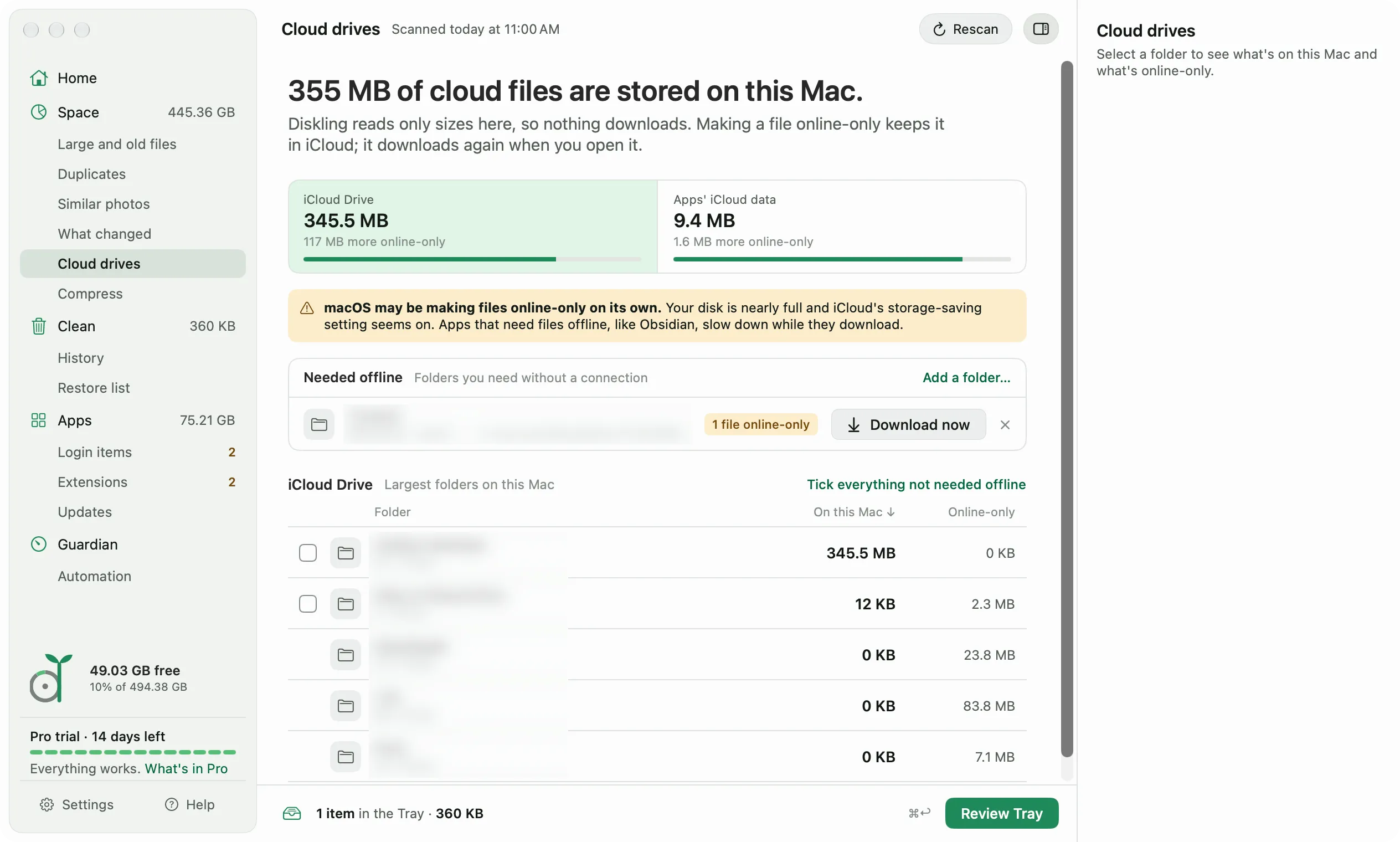
Diskling only reads sizes here, so nothing downloads while you look.
Make iCloud folders online-only
Online-only means the file stays in iCloud and downloads again when you open it. Nothing is deleted.
- Mark the folders you need without a connection first. See Needed offline below.
- Tick the iCloud Drive folders you can leave online, or click Tick everything not needed offline.
- Click Review Tray, check the review, and click Clean.
Files still uploading are skipped and stay on your Mac. Undo starts the downloads again.
Needed offline
Some folders have to stay on your Mac, like an Obsidian vault or the files you take on a flight. Add them under Needed offline with Add a folder, and Diskling never makes them online-only. Obsidian vaults are added for you.
Diskling also warns when one of these folders has files that aren’t on your Mac. Click Download now to bring them back. To keep a folder downloaded for good, Control-click it in Finder and choose Keep Downloaded.
If your disk is nearly full and iCloud’s storage-saving setting is on, macOS may make files online-only on its own. The screen tells you when that’s likely, since apps that need their files offline slow down while they download.
Dropbox, Google Drive, OneDrive, and Box
Diskling shows how much of each is on your Mac, but it can’t make their files online-only. macOS only lets Finder do that for them. In Finder, Control-click a folder and choose Remove Download.
Free and Pro
Seeing your cloud drives and Download now are free. Making folders online-only is part of Pro. Shortcuts can do it too, with Make Folder Online-Only.