History
Open History under Clean. The headline is how much space Diskling has given back so far, and how many runs that took.
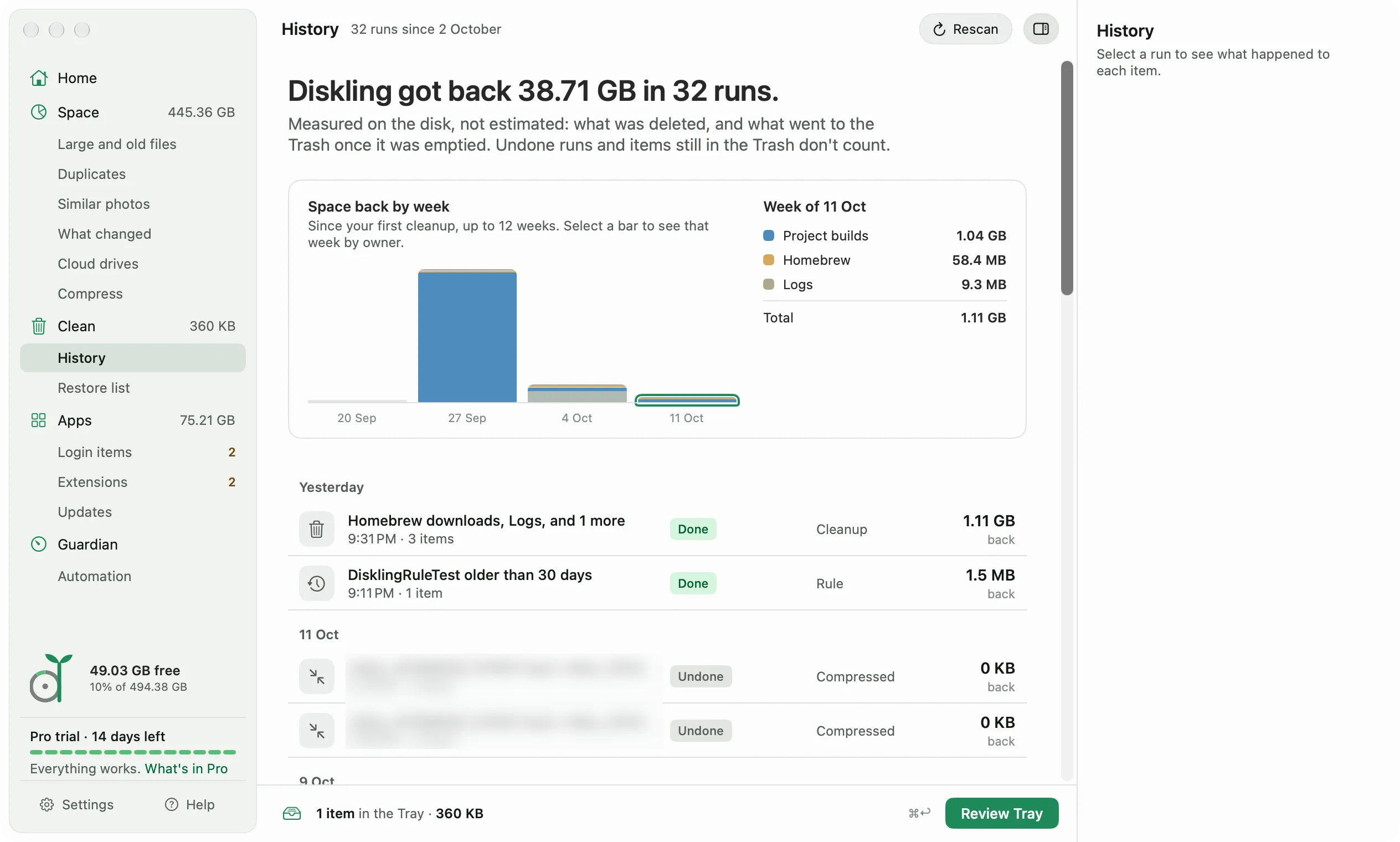
The number is measured on the disk, not estimated. It counts what was deleted, and what went to the Trash once the Trash was emptied. Undone runs, and items still sitting in the Trash, don’t count.
The list shows each run with what it was: a cleanup, an uninstall, a rule, or a compress. Select one to see what happened to each item, in the side panel:
- Deleted for good, for caches and build files.
- In the Trash, or To the Trash, since emptied.
- Made online-only, still in iCloud.
- Removed by the tool’s own command, like Docker or Homebrew.
Put things back
While a run’s items are still in the Trash, its side panel has Put Back. Click it and everything that run moved to the Trash goes back where it was.
Caches and build files deleted for good stay deleted, since apps and tools make them again. Compressed files come back as the originals, and the new versions go to the Trash. Online-only files start downloading again.
Delete for Good, in the same panel, empties only what that run put in the Trash. Anything else in your Trash stays. After that, Put Back can’t bring it back.
Right after a cleanup, the result screen has the same two buttons, Undo and Delete for good. Clean up space safely shows that screen.
The Restore list
Open Restore list under Clean. It keeps what went somewhere other than the Trash, with how to get each one back.
- Files you offloaded. Select one and click Bring back. Diskling copies it home and checks it byte for byte against the checksum it saved when you offloaded it. The copy on the other drive stays. If that drive isn’t connected, the panel says to connect it first.
- Things a tool’s own command removed, like Docker images, iOS simulator runtimes, or Homebrew downloads. Diskling can’t put those back itself, so each one says how. For example,
docker pullbrings images back, and Xcode downloads a runtime again in Xcode, Settings, Components.
Compress and offload explains how offloading works.
Free and Pro
History and the Restore list are free. On Free, History shows the last 7 days. Pro shows every run, with the weekly chart and the split by owner. Diskling keeps every run either way.