Compress
Open Compress under Space. It looks at the videos and photos in your personal folders and works out how much each would shrink.
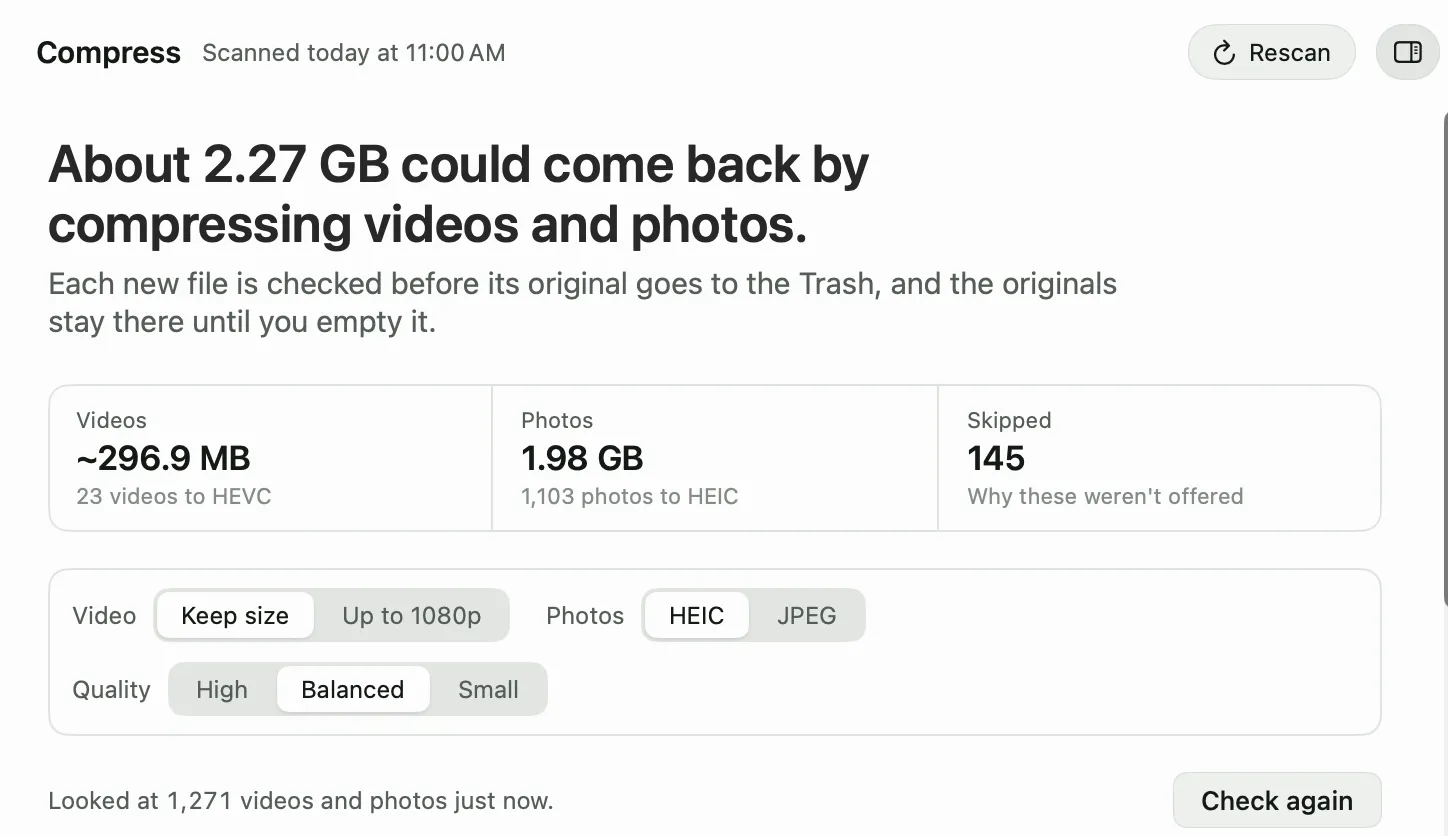
Pick your settings:
- Video: Keep size, or Up to 1080p to also shrink larger videos to 1080p.
- Photos: HEIC or JPEG. HEIC is smaller and opens on every Apple device. Choose JPEG for photos you share with Windows or upload to websites.
- Quality: High, Balanced, or Small, for photos. Balanced is the default.
Select a photo or a folder to see a 100% crop of the original next to the new version. Look at fine detail like text, hair, and leaves before you choose Small.
Then tick videos, folders of photos, or single photos, click Review Tray, and click Compress. Compressing video uses a lot of power, so plug in first.
What gets offered
Diskling only offers a file when it gets at least 20% smaller. Videos must be H.264 or older formats. Photos must be JPEG, PNG without transparency, TIFF, or BMP. It never touches RAW photos, HDR video, the Photos library, or app and project folders. The Skipped card lists what was left out and why.
Every new file is checked first
Each new file has to open, show its picture, match the original’s length, picture size, and sound, keep its dates and location, and be smaller. If any check fails, the new file is removed and the original stays.
When a new file passes, the original goes to the Trash and stays there until you empty it. Undo puts the original back and moves the new file to the Trash. Dates, location, camera details, and Finder tags carry over to the new file.
Offload
Offload moves a big file to an external drive, a network drive, or iCloud Drive, and frees its space on this Mac.
- In Space or Large and old files, select a file and click Offload.
- Pick where it goes. Diskling puts it in a folder named Offloaded from Mac on that drive, in the same place it had at home. Click Change folder to pick another.
- Click Add to Tray, then Review Tray, and Clean.
Each file is copied, then both copies are read in full and compared. Only when they match does the original go to the Trash. If they don’t match, the copy is removed and the original stays.
With iCloud Drive, the copy stays on this Mac until iCloud has uploaded it. Then Diskling makes it online-only and the space comes back.
Clean, Restore list keeps where each offloaded file went. Click Bring back to copy one home again, checked the same way. History and the Restore list covers it.
Free and Pro
Compress and Offload are part of Pro. You can still open Compress and compare before and after on Free. See your license for how the trial works.