
On October 15, I installed the CleanMyMac trial on my Mac and ran every scan it has. Then I ran Diskling on the same Mac, the same day. CleanMyMac is the Mac cleaner most people have heard of. So when someone looks for a CleanMyMac alternative, I expect Diskling to be one of the apps they hold up against it.
Both apps found far more than 18 GB on this Mac. They split on how much of it they ticked for me. CleanMyMac ticked 18.2 GB and asked for one click. Diskling ticked 43.7 MB and listed about 123 GB more for me to review, each line with a reason.
We build Diskling, so read this knowing that. I only scanned with CleanMyMac and never cleaned anything with it. Where a detail comes from MacPaw’s website instead of my test, I say so.
CleanMyMac is the bigger toolbox: malware scanning, email cleanup, and cloud account cleanup sit next to the cleanup. Both found far more than they ticked. CleanMyMac’s one-click scan ticked 18.2 GB on my Mac, mostly app caches that come back. Diskling ticked 43.7 MB and listed about 123 GB more to review, with a reason on every line. CleanMyMac needs a MacPaw account and a yearly plan or $79.95 once, while Diskling needs no account and costs $9.99 once for 2 Macs.
Before the first scan
CleanMyMac 5.7.1 opens with a nicely animated welcome and asks for Full Disk Access first. I liked that part. Then I pressed Scan, and it asked me to sign in.
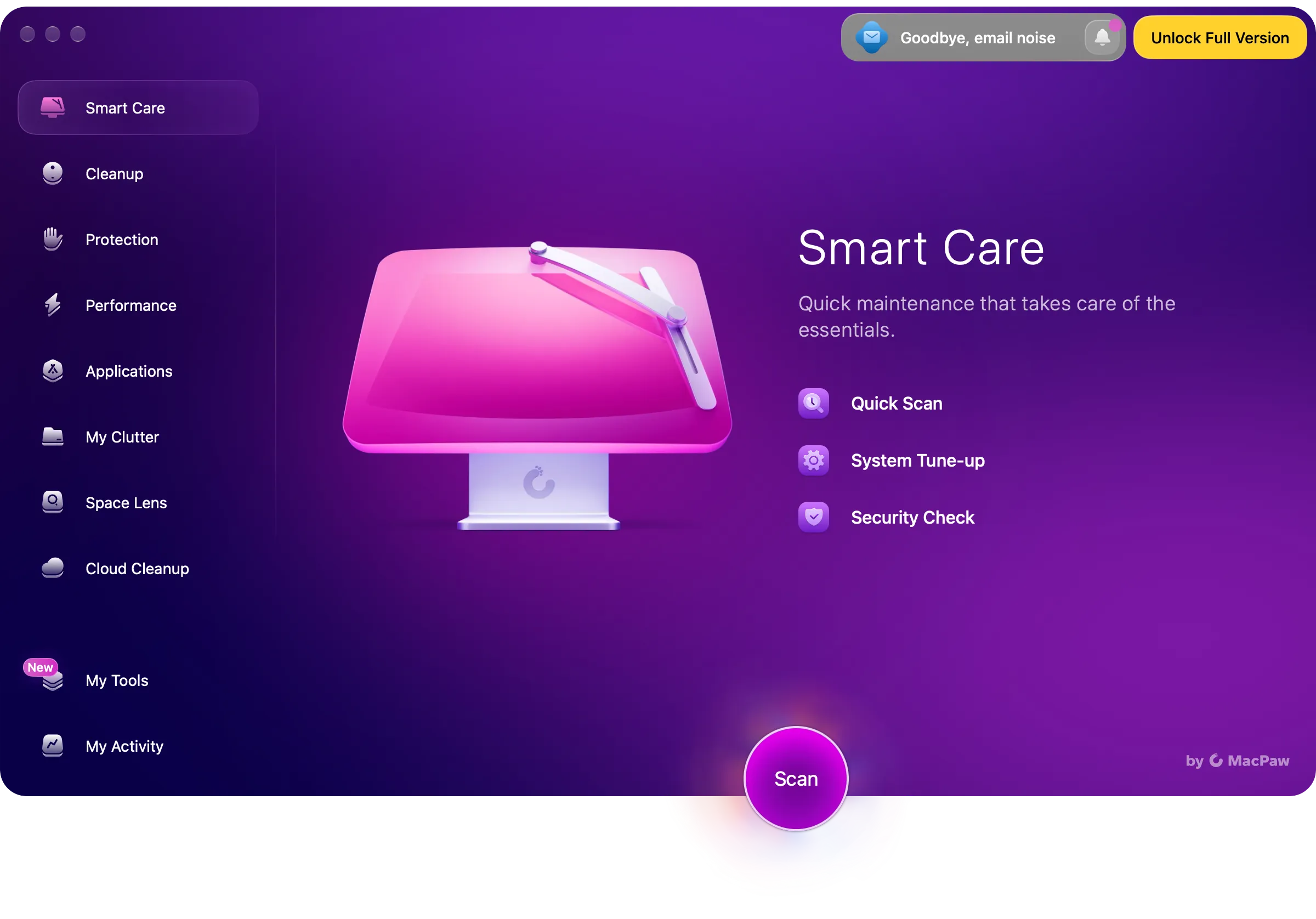
You need a MacPaw account to start the free trial, even just to see what’s on your disk. Diskling has no account. It scans on first launch, and a license is a code you paste in, checked on your Mac. Install Diskling and run your first scan shows the whole first run, and what Diskling keeps on your Mac lists the only two times it connects, for updates and rules, both behind one switch.
The one-click scan
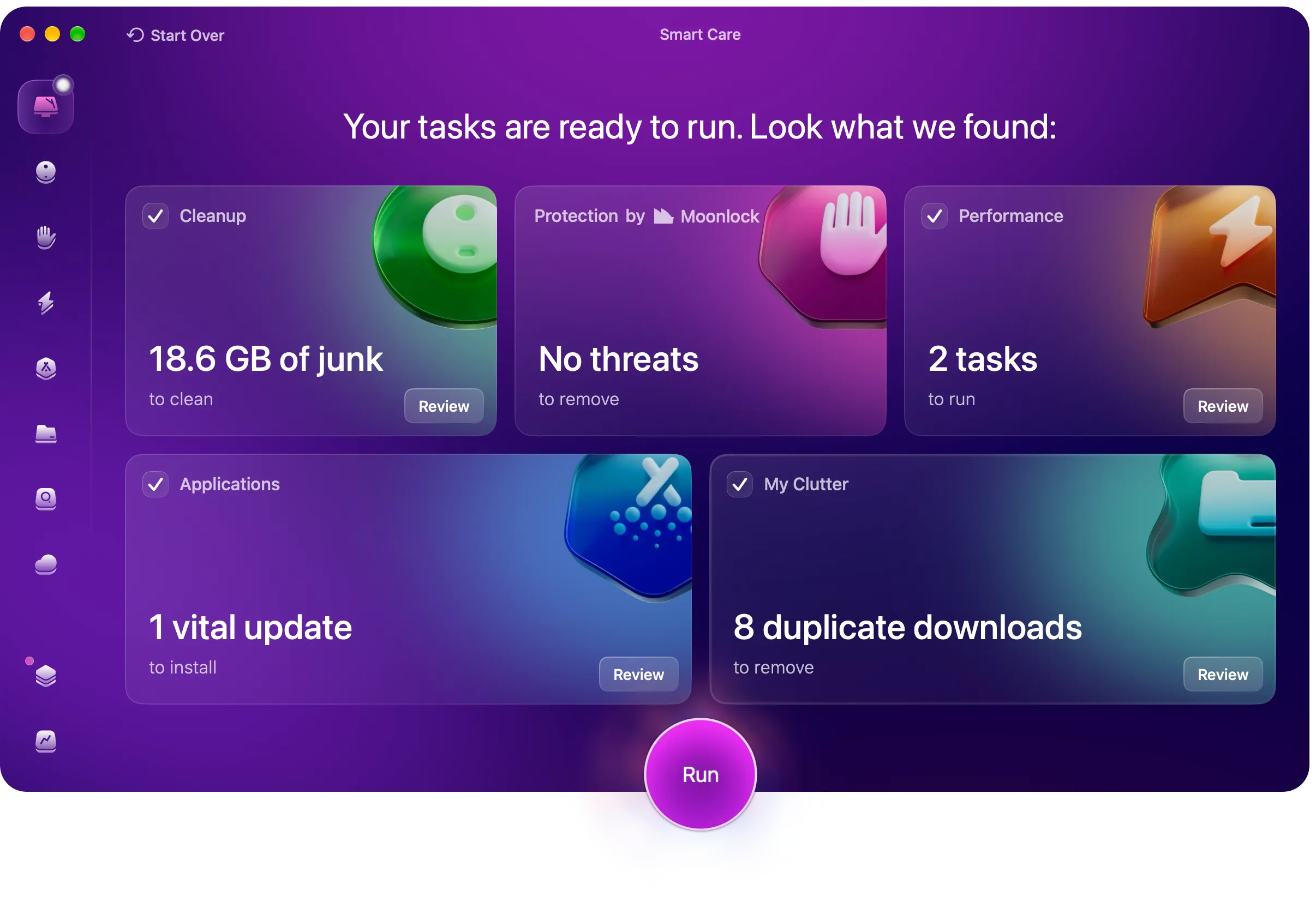
Smart Care took about 3 minutes on my Mac. It found 18.6 GB of junk, no threats, 2 performance tasks, 1 app update, and 8 duplicate downloads. Every card with something to do was ticked, and one Run button does all of it.
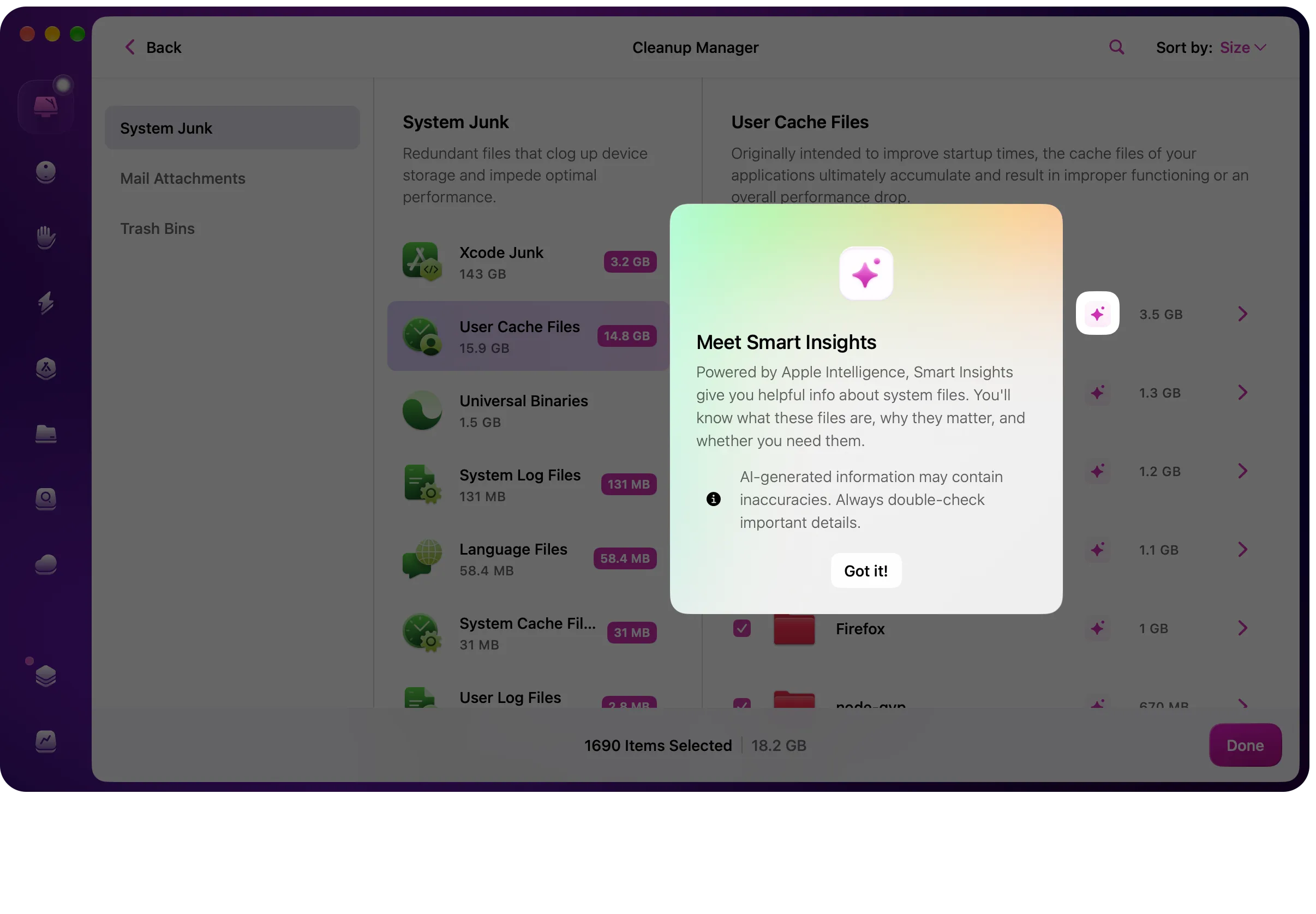
I opened the review to see what the 18.6 GB was. 1,690 items were selected, 18.2 GB in all. Most of it was app caches: 14.8 GB from apps like Google, Claude, Slack, and Firefox. Another 3.2 GB was Xcode’s Derived Data. CleanMyMac also listed 139 GB of simulator runtimes and left those unticked, so it holds back on the bigger risks too.
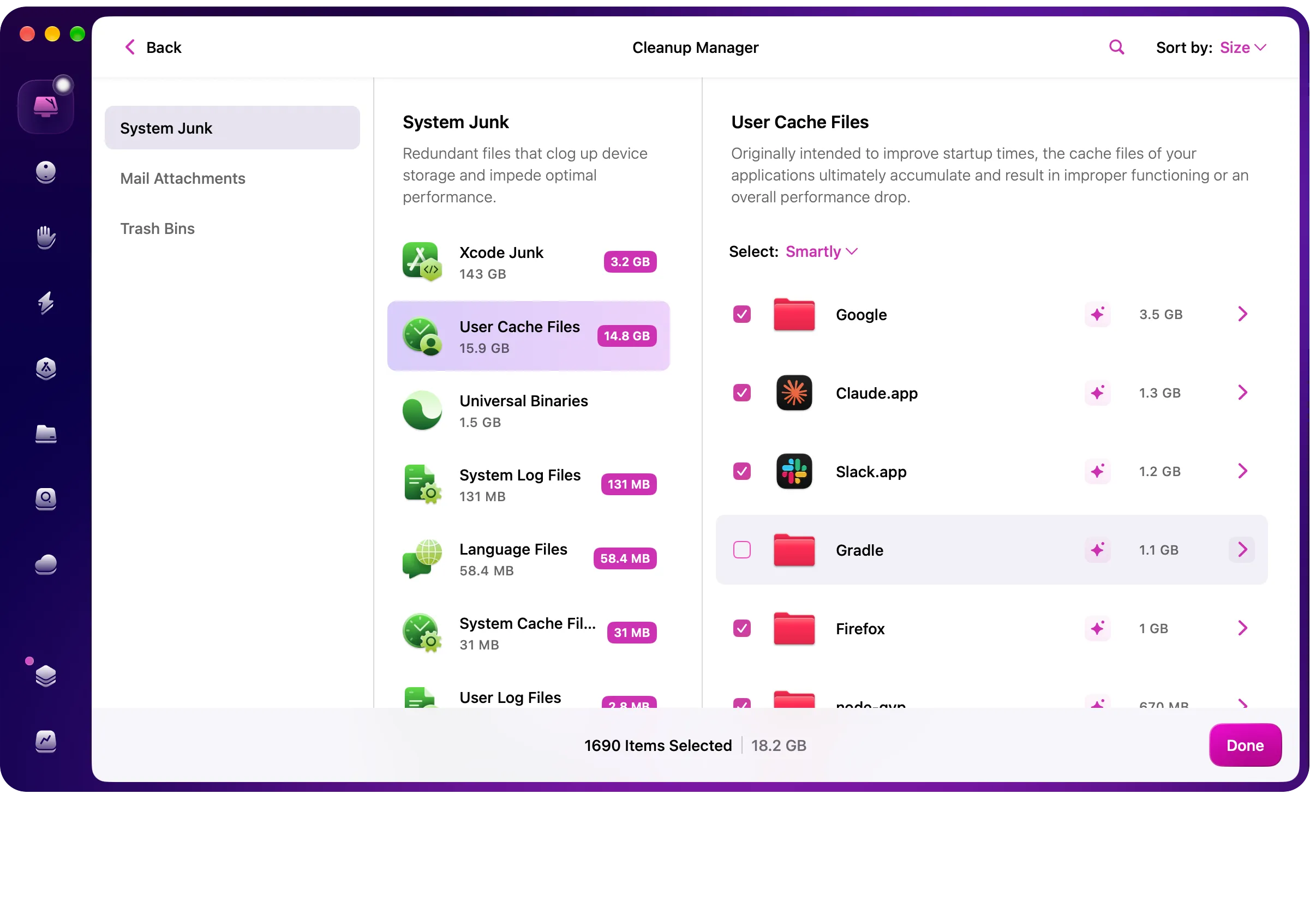
Caches are safe to remove, but they come back. Apps rebuild them the next time you use them, and the first launch after a cleanup is slower. So the space comes back to you, and then each app fills it again the next time it runs.
Diskling found the same kind of cache on my Mac, 10 GB of it, and left it unticked. Its Clean screen ticked 43.7 MB: old logs, and build folders in projects I hadn’t touched in 90 days.
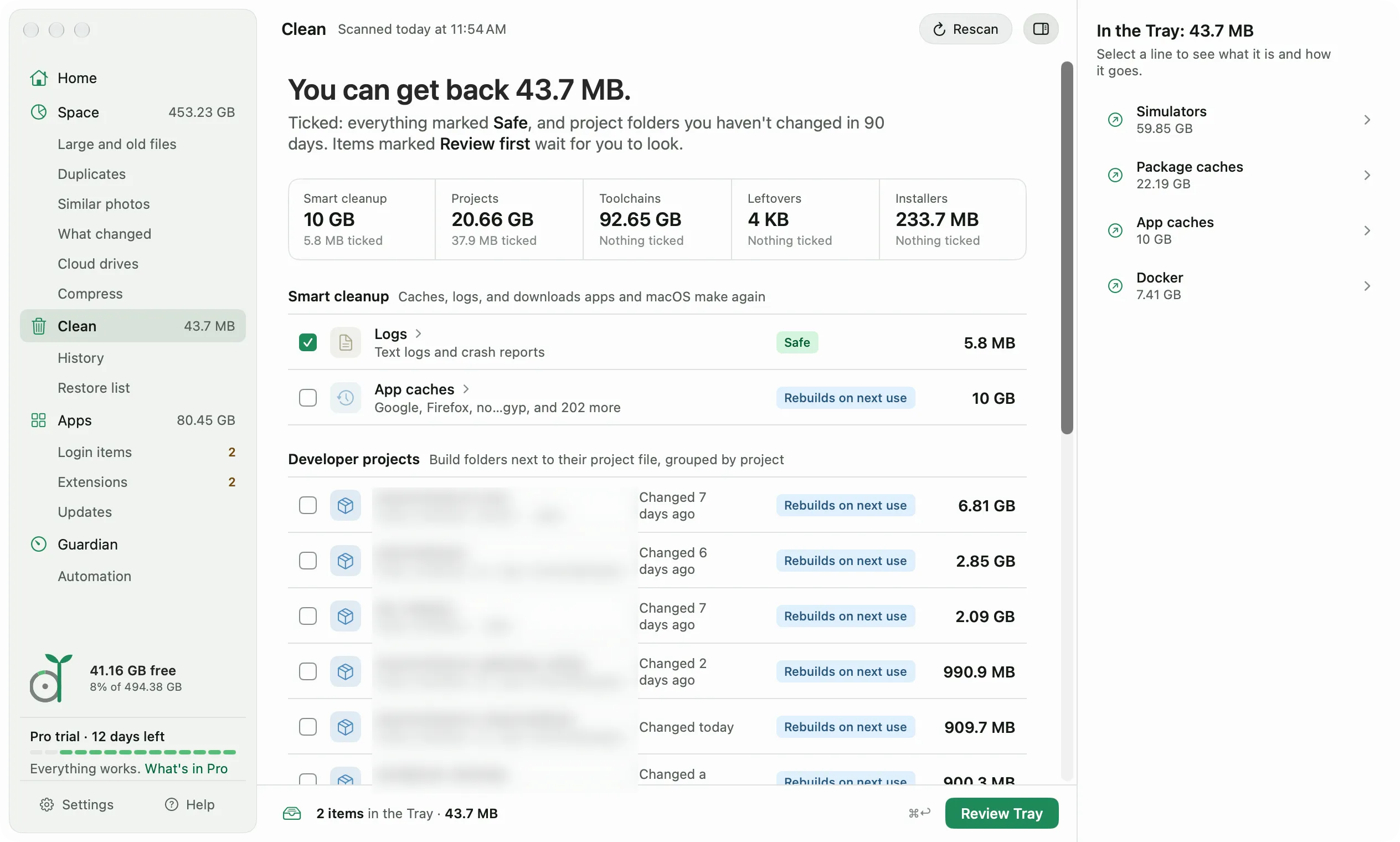
Everything else waits for you, with a reason on every line. App caches say “Rebuilds on next use”. Old iOS simulators, package caches, and Docker sit under Toolchains, 92.65 GB on this Mac. None of it is ticked, because a few of those you’d want to keep. Clean up space safely explains how Diskling decides.
I can see why the big number is tempting on a nearly full disk. My Mac froze and restarted with 16 GB free on September 29. Now I’d rather have the smaller number I won’t have to win back next week, plus a list for the rest.
Mapping the whole disk
The closest like-for-like test is a map of everything on the disk. CleanMyMac’s Space Lens draws a bubble map, and it took 1 to 2 minutes for 417 GB and 5 million items on my Mac.
A full Diskling scan of the same Mac took 50 to 55 seconds for about 5.75 million files. Rescans are faster because Diskling reads only the folders that changed, and most of mine that day took 3 to 5 seconds. I didn’t put Smart Care’s 3 minutes next to those numbers, since Smart Care also runs a malware check.
How each explains a file
CleanMyMac has Smart Insights that explain what a file is. Apple Intelligence writes them, and CleanMyMac says so, with a warning that the text may contain mistakes and you should double-check important details.
Diskling’s explanations come from rules written by hand, one per folder, and each rule lists the sources it’s based on. Every item says what it is, who owns it, and what happens if it goes. For something I’m about to delete, I trust a rule someone checked more than a summary that comes with a warning.
What both do
A lot of the basics are in both apps, under different names.
| CleanMyMac | Diskling | |
|---|---|---|
| Map of the disk | Space Lens | Space map |
| Uninstaller with leftovers | Uninstaller, Leftovers | Apps |
| Large and old files | Large and Old Files | Large and old files |
| Duplicates | Duplicate Finder | Duplicates |
| Similar photos | Similar Images | Similar photos |
| App updates | App Updater | Apps, Updates, checked when you ask |
| Login and background items | Login Items, Background Items | Login items, Extensions |
| Menu bar app | Yes | Diskling Guardian |
| Privacy cleanup | Privacy Items | Clean, Privacy |
What CleanMyMac does that Diskling doesn’t
CleanMyMac has 8 modules and 20 more tools under My Tools. Some of them Diskling doesn’t do at all:
- Malware scanning, from MacPaw’s Moonlock.
- Email cleanup, which connects to your mailbox.
- Speed tasks like flushing the DNS cache and freeing up purgeable space. Diskling leaves both to macOS on purpose.
- Cloud cleanup, which connects to your iCloud, Google Drive, OneDrive, or Dropbox account online.
- A screen cleaning mode.
If you want one app for all of that, CleanMyMac is the one.
What Diskling does that I didn’t find in CleanMyMac
I went through all 8 modules and 20 tools in CleanMyMac 5.7.1 and didn’t find these:
- An owner for every folder. Diskling names what made each gigabyte, like Xcode, Docker, or Chrome, and the Space map shows it.
- What changed between scans, so you can see which folder grew this week.
- A forecast of when your disk will be full, from Diskling Guardian in the menu bar.
- Developer cleanup grouped by project, ticked only for projects nobody has changed in 90 days.
- Compressing videos to HEVC and photos to HEIC, with every new file checked first.
Uninstalling CleanMyMac
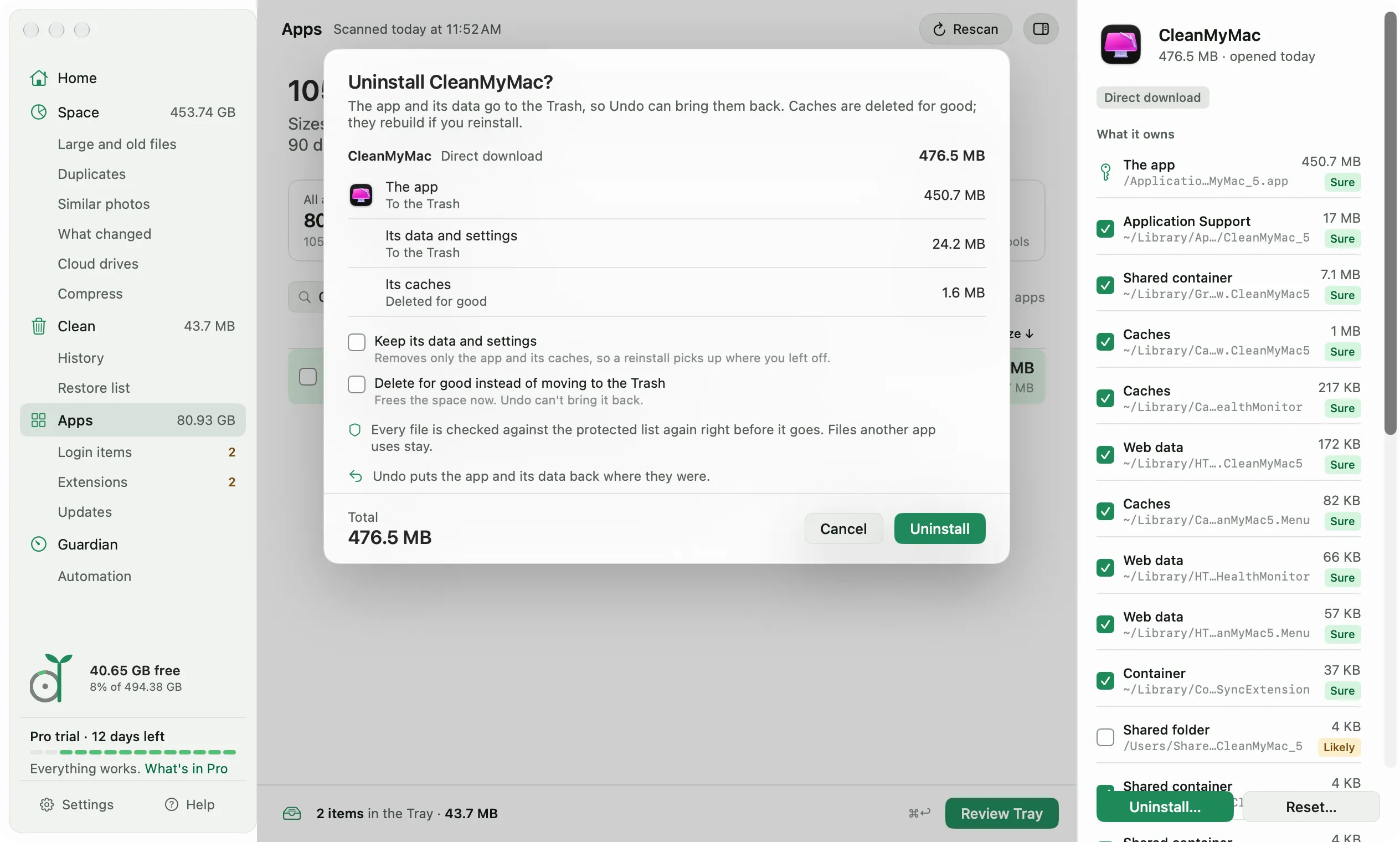
When I quit CleanMyMac, three parts kept running: its menu bar app, a HealthMonitor, and a Finder extension. An updater was also set to start with the Mac.
I removed it with Diskling’s uninstaller. It found 476.5 MB: the app, its data and settings, caches for each of those parts, and the updater.
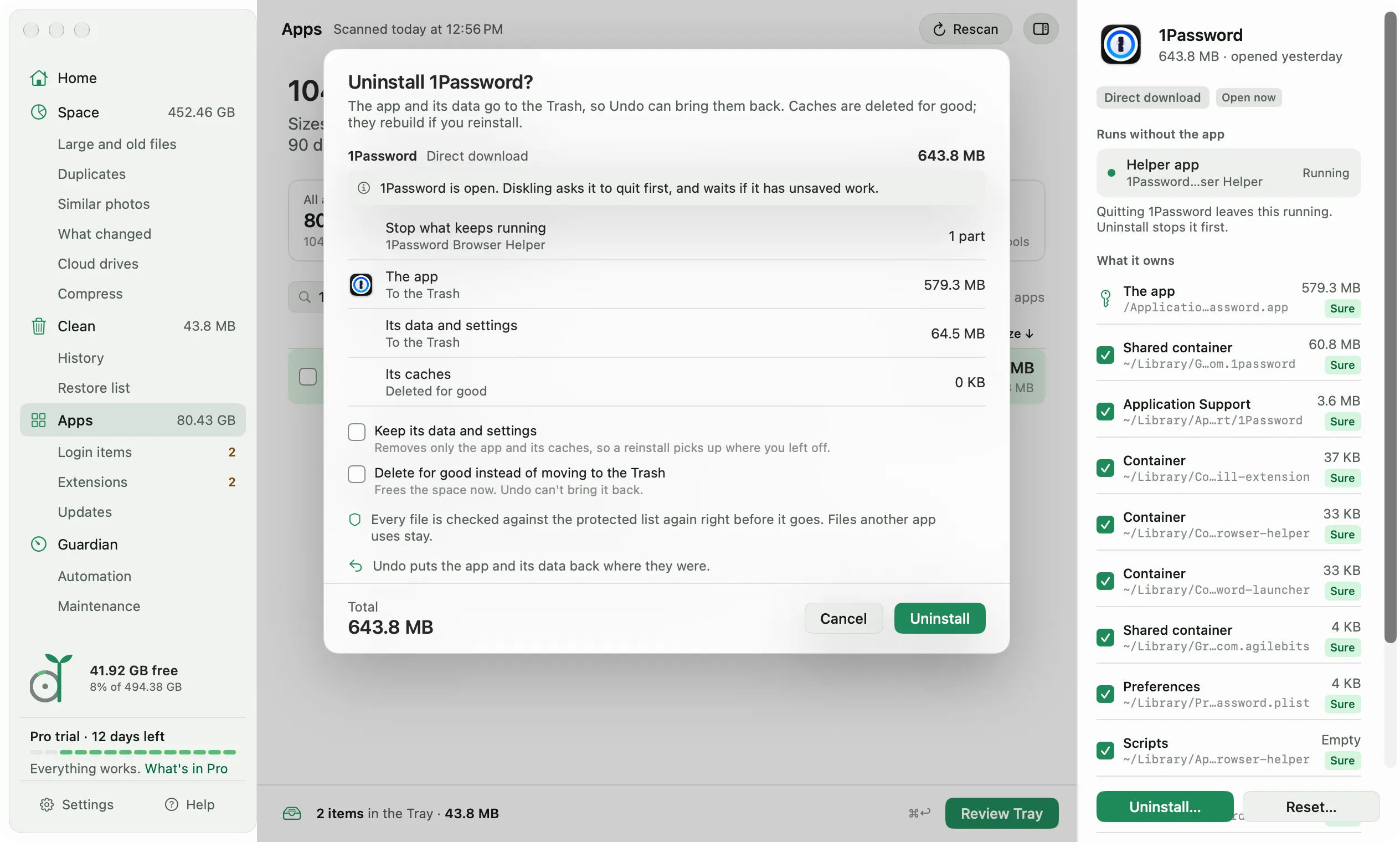
Diskling also shows what keeps running before you remove anything. Select an app in Apps, and the side panel lists its helpers, extensions, and login jobs that stay on after you quit it, under “Runs without the app”. The uninstall review starts by stopping them. On my Mac, 1Password’s Browser Helper was one of those.
To be fair, Diskling can leave something running too. If you turn on Diskling Guardian, it stays on after you quit Diskling so its alerts still reach you. It’s listed in your Login Items, where you can switch it off, and its menu bar ring has its own switch in Settings, General.
Uninstall apps and what they leave behind shows how it works for any app.
Maintenance, with different picks
Both apps have maintenance tasks, but they pick different ones. CleanMyMac’s Smart Care offered to flush the DNS cache and free up purgeable space, up to 9.4 GB, and ticked both.
Diskling’s Maintenance page, part of Pro, has three tasks, and each one runs only when you click it: thinning local Time Machine snapshots, rebuilding the Spotlight index, and clearing old entries from Finder’s Open With menu. On my Mac it found 839 Open With entries for apps that were gone, mostly old Chrome versions and the CleanMyMac helpers I’d removed. It cleared all of them.
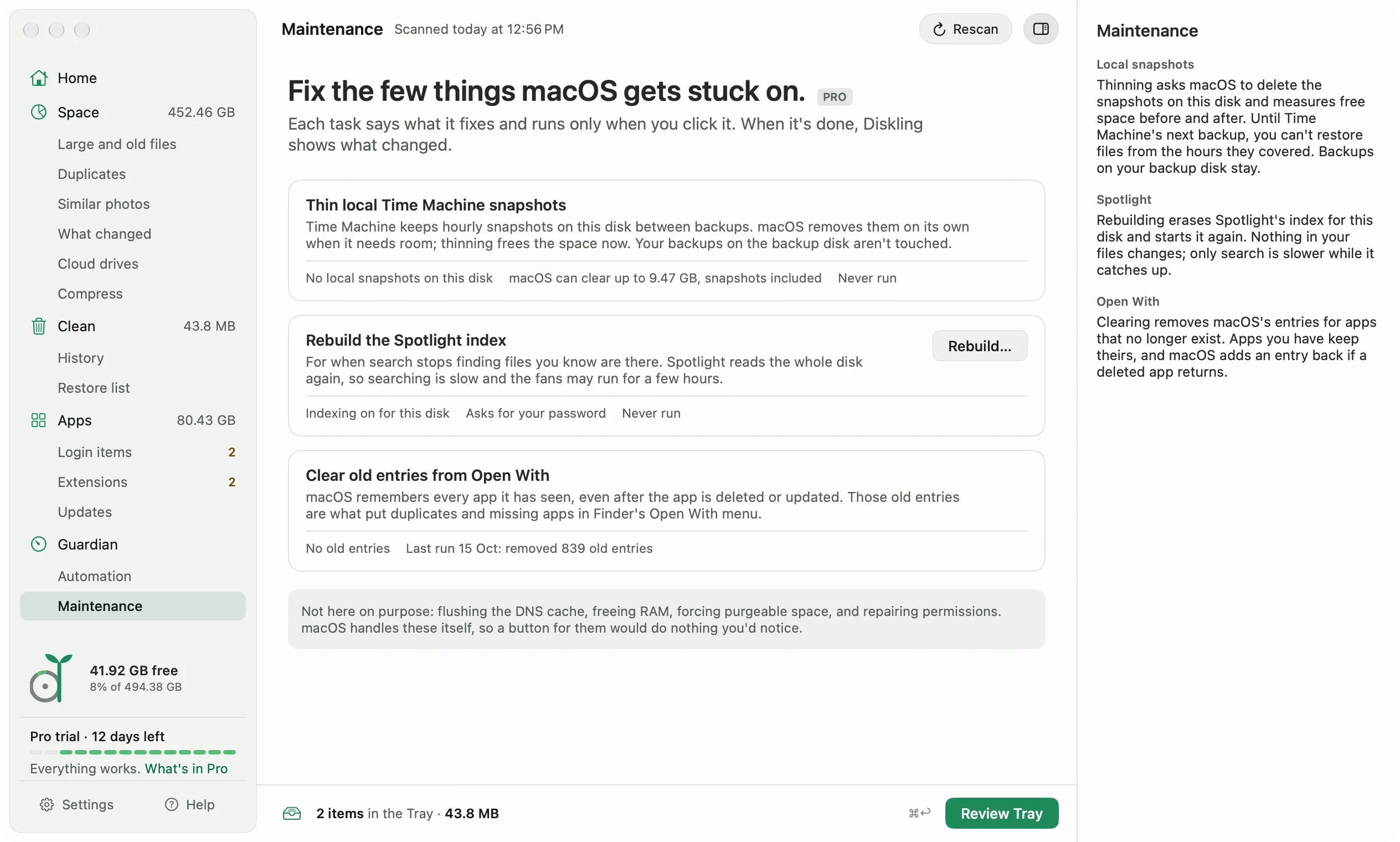
The page also says what it leaves out and why: flushing the DNS cache, freeing RAM, forcing purgeable space, and repairing permissions. macOS handles those itself. I like that the page says so instead of leaving them out without a word.
Price, refunds, and what you need
Prices and details come from MacPaw’s store and diskling.com on October 15, 2026, in US dollars.
| CleanMyMac | Diskling | |
|---|---|---|
| Try it | Free trial, needs a MacPaw account | 14 days of Pro, no account |
| Free version | In my test, scanning needed the trial or a plan | Free plan: scans, explains, removes one item at a time |
| 1 Mac | $29.95 a year, or $79.95 once | $9.99 once, covers 2 Macs |
| 2 Macs | $47.95 a year, or $127.95 once | $9.99 once |
| 5 Macs | $95.95 a year, or $255.95 once | $19.99 once (Family) |
| Refunds | Lists a 30-day money-back guarantee | 14-day full refund |
| Support | Lists 24/7 technical and sales support | |
| Needs | macOS 11 or later | macOS 14 Sonoma or later |
| Size | 320 MB on the store, 450.7 MB installed on my Mac | 36 MB |
CleanMyMac also sells Essential Trio, with only Cleanup, Applications, and My Clutter, for $14.95 a year on 1 Mac. A Diskling license includes a year of new features, and another year is $6.99 if you want it. The pricing page has the full Free and Pro list, and the refund policy explains how refunds work.
CleanMyMac is also on the Mac App Store, where the yearly plan is $39.99. Diskling is sold only at diskling.com.
Questions people ask
Is CleanMyMac safe?
It’s made by MacPaw and also sold on the Mac App Store. Its one-click scan ticked mostly app caches on my Mac, which are safe to remove but come back. Look through the review before you press Run.
Is there a free alternative to CleanMyMac?
Diskling’s Free plan scans your disk, explains what’s on it, and removes one item at a time. It keeps working after the trial, with no time limit and no account.
Does Diskling work without an account?
Yes. It scans on first launch, and a Pro license is a code you paste in, checked on your Mac.
Which one fits you
Pick CleanMyMac if you want malware scanning, email cleanup, and cloud account cleanup in the same app as the cleanup, and you’re fine with an account and a yearly plan.
Pick Diskling if you want to see what’s using your disk and why, review every item before it goes, and pay once. It suits anyone with a few hundred gigabytes they can’t explain, and developers most of all. It needs macOS 14 Sonoma or later, so on Big Sur, Monterey, or Ventura, CleanMyMac is the one that runs.
Both have a free trial, so do what I did: run both on your Mac on the same day and compare the lists, not only the totals. On mine, most of CleanMyMac’s 18.2 GB was caches the apps would rebuild. Diskling’s 43.7 MB was old logs and build folders from projects I hadn’t touched in 90 days, and the rest waited on its list for me to decide.

I'm the product manager for Diskling, which mostly means asking "but what if" until nothing breaks. I studied soil science before software, and outside work it's family, farming and whatever I'm learning next.
Comments
No comments yet. Tried this on your Mac? Tell me how it went.