
I went back to check whether the four iOS simulators I’d deleted from AssetsV2 had stayed gone. They hadn’t. simctl listed all four again, marked Ready, and the folder they live in was the exact size it had been on the day I deleted them.
That simulator folder is most of AssetsV2 on my Mac. When I first measured the whole thing, it came to 66 GB, and 57 GB of it was seven copies of iOS, the ones Xcode’s simulator runs apps on. The rest was Apple’s own downloads: Siri, language data, fonts, update parts. You can remove the simulators, and macOS won’t let you touch the rest.
AssetsV2, at /System/Library/AssetsV2, holds the system files macOS downloads, and on my Mac Xcode’s iOS simulators were most of it. macOS protects the folder, so you can’t delete it. You can remove simulators with simctl. Mine came back twice before a third delete freed the space, so check with du afterwards.
What AssetsV2 is
Each folder inside AssetsV2 holds one kind of download, and the names say what it’s for: com_apple_MobileAsset_Font8 for fonts, com_apple_MobileAsset_TimeZoneUpdate for time zones, com_apple_MobileAsset_MacSoftwareUpdate for macOS updates. There were 95 of them on my Mac when I last counted, on November 15.
The path says /System, but the files don’t sit on the read-only part of macOS. The file /usr/share/firmlinks links /System/Library/AssetsV2 to the data side of the disk, the same side as your own files. That’s why it can grow, and why it counts against your free space.
None of it shows up in Finder’s usual places, and Storage settings counts all of it as System Data. So a gray bar can grow by tens of gigabytes without any app of yours getting bigger.
How big it was on my Mac
When I measured on October 15, these two commands printed a total of 66 GB, then the biggest folders inside:
du -shx /System/Library/AssetsV2du -shx /System/Library/AssetsV2/* 2>/dev/null | sort -h | tail -8The 2>/dev/null hides the “Operation not permitted” lines. macOS wouldn’t even let me read some of the folders.
| Folder | What it’s for | Size |
|---|---|---|
iOSSimulatorRuntime |
iOS for Xcode’s simulator | 57.1 GB |
AppleDeveloperDocumentation |
Apple’s developer documentation | 1.6 GB |
UAF_LinguisticData |
Language data | 1.6 GB |
UAF_Siri_Understanding |
Siri | 1.3 GB |
UAF_Siri_TextToSpeech |
Siri’s voice | 0.8 GB |
UAF_Photos_SpatialPhotosRelive |
Photos | 0.8 GB |
UAF_Translation_Assets |
Translation | 0.7 GB |
MetalToolchain |
Xcode’s Metal tools | 0.7 GB |
I left off the com_apple_MobileAsset_ part of each name so the table fits. Everything after the top eight came to about 1.2 GB, spread across the other folders.
Can you delete it?
Not the folder itself. On my Mac, ls -ldO /System/Library/AssetsV2 showed it marked restricted:
drwxr-xr-x@ 109 root wheel restricted 3488 Oct 15 14:30 /System/Library/AssetsV2The word “restricted” means System Integrity Protection covers it. Apple’s page About System Integrity Protection on your Mac lists /System as protected, and says only Apple-signed processes can change it, not even the root user. Dragging it to the Trash or running sudo rm won’t work, and that’s on purpose.
Don’t turn off System Integrity Protection for this
Search long enough and you’ll find people who did it anyway. In one Apple Developer Forums thread about simulator runtimes stuck in AssetsV2, several people restarted into Recovery, ran csrutil disable, deleted the folders with sudo rm -rf, and turned the protection back on.
An Apple engineer in that thread said deleting them that way isn’t supported, because it changes data structures behind the back of a running system. While the protection is off, nothing stops any other process from changing system files either.
I wouldn’t do it. Deleting runtimes with simctl is the supported way, and the rest is small enough to leave alone.
The part you can remove: simulator runtimes
If you use Xcode, the simulator runtimes are where the space is. Each one is a full copy of iOS, 7.5 to 8.5 GB on my Mac, and Xcode keeps the old ones when it adds a new one.
Xcode’s simctl lists them with their versions:
xcrun simctl runtime listOn October 15 it listed seven, from iOS 18.0 to iOS 27.0, and counted them at 55.7 GB. To remove one, copy its identifier from that list:
xcrun simctl runtime delete <identifier>You can also let simctl pick. Its help text lists three options: --unusable for runtimes it marks as unusable, --notUsedSinceDays for ones you haven’t run in a while, and --outdated for runtimes that “have a newer version available with the same runtime identifier”.
--outdated sounds like the one for old iOS versions, but each version has its own identifier, like iOS-18-1 and iOS-18-2. With six versions installed, xcrun simctl runtime delete --outdated --dry-run printed “No matching images found to delete” on my Mac.
Whichever one you use, add --dry-run first. It prints what it would delete and deletes nothing:
xcrun simctl runtime delete --notUsedSinceDays 90 --dry-runIf you’d rather click, Xcode lists the same runtimes in Settings, under Components, and you can delete them there. That’s also where you download one again if you need it later.
How to delete old iOS simulators without breaking Xcode goes through which ones to keep, how to get one back, and how to check the space really came back.
Keep the runtime that matches your Xcode, and any iOS version you still test on. I kept iOS 18.0 for that reason.
When deleted runtimes stay on disk
Deleting a runtime doesn’t always free the space. Of the six runtimes deleted for the simulators post on September 29, only iOS 26.1 left the folder. The other five, 41.6 GB, stayed in AssetsV2 after simctl and Xcode both stopped listing them.
By the time I wrote this post, simctl listed all five again as Ready. On October 28 I deleted four of them a second time and kept iOS 18.0, which I’d run four days earlier. First I measured the simulator folder:
du -sk /System/Library/AssetsV2/com_apple_MobileAsset_iOSSimulatorRuntimeIt printed 51,553,840 KB, about 49 GB. I ran xcrun simctl runtime delete for iOS 18.1, 18.2, 18.4 and 18.5, after a dry run. simctl’s total dropped from 47.8 GB to 15.3 GB. Ten minutes later, du printed the same 51,553,840 KB, and all six runtime folders were still inside AssetsV2.
That matches the forum thread above, where people found runtime folders that simctl couldn’t see and macOS blocked sudo rm. If du doesn’t drop after a delete, the files are still in the protected folder, and the safe move is to leave them there rather than turn off System Integrity Protection.
What I’d do: run that du command before a delete, right after it, and once more a week or two later. On my Mac, the first two numbers matched, and only the late check showed the runtimes coming back.
Eleven days later, all four were back
On November 8 I ran the same du command on the simulator folder:
du -sk /System/Library/AssetsV2/com_apple_MobileAsset_iOSSimulatorRuntime
51553840	/System/Library/AssetsV2/com_apple_MobileAsset_iOSSimulatorRuntime
That’s the number from before and after the October 28 delete. Then I asked simctl what it had:
xcrun simctl runtime list
== Disk Images ==
-- iOS --
iOS 18.0 (22A3351) - CC3CC66B-9B75-4019-BC3D-50B90EEFAB51 (Ready)
iOS 18.1 (22B81) - 0766A70C-41DB-4E69-81C8-4A60E7C5A53F (Ready)
iOS 18.4 (22E238) - 3B4B45DB-3FCE-4988-A377-53EAD7C517A4 (Ready)
iOS 18.2 (22C150) - 4A192C5B-468A-44D5-AA83-C6F8906AD5BD (Ready)
iOS 27.0 (24A434) - 9FC8B713-7420-45F7-8C41-37F9A0E73137 (Ready)
iOS 18.5 (22F77) - F4D19474-2D5D-426F-89FE-D6636D746569 (Ready)

Total Disk Images: 6 (47.8G)
iOS 18.1, 18.2, 18.4 and 18.5 were all back. The total was 47.8 GB again, the same as before I deleted anything.
Nothing on my Mac records when they came back, and it restarted at least once in those 11 days. The best clue is in simctl’s own help text, under scan-and-mount: “Scans all of the runtime storage location looking for orphaned runtimes that need to be added.”
The runtime files never left AssetsV2, so anything that scans that folder finds them again. In the forum thread above, one person ran scan-and-mount, deleted what it found, and the runtimes were back. Another wrote that an iOS 18 runtime “keeps auto-reappearing right after” deleting it.
The same help text says why I expected the space back. Its --keep-asset option means “Keep the associated mobile asset when deleting the runtime”. So a normal delete is meant to remove the files in AssetsV2 too. On my Mac it didn’t, for five of the six runtimes deleted on September 29 or for these four on October 28.
If you measure it yourself: simctl says the iOS 18 runtimes run from /Library/Developer/CoreSimulator/Cryptex. That isn’t a second copy. They’re the disk images in AssetsV2, mounted there like a drive. du -skx on the Cryptex folder printed 4 KB. Without -x, du follows the mounts and counts about 42 GB that’s really in AssetsV2.
One reply in that thread says the Delete button in Xcode 27.2 beta 2, in Settings under Components, removed the stuck runtimes for good. My Mac runs the released Xcode 27.2, and I haven’t tried that button on these four.
On November 15, the space finally came back
By November 15 my Mac was down to 8.3 GB free, so I deleted the iOS 18 runtimes again. This time I deleted all five, iOS 18.0 included, with xcrun simctl runtime delete and each identifier from the list above.
Free space went from 8.3 GB to 67 GB. Half an hour later, simctl listed one runtime:
xcrun simctl runtime list
== Disk Images ==
-- iOS --
iOS 27.0 (24A434) - 47B1CF26-BDAF-4F45-8D2C-8C3A0EA531D7 (Ready)

Total Disk Images: 1 (7.5G)
The same du command on the simulator folder printed 7,877,972 KB, about 7.5 GB, down from 51,553,840 KB. One runtime folder was left inside. Unlike October, the files left AssetsV2 this time instead of staying behind.
Xcode’s Components settings showed the same thing: one iOS 27.0 Simulator under Other Installed Platforms, and no iOS 18.
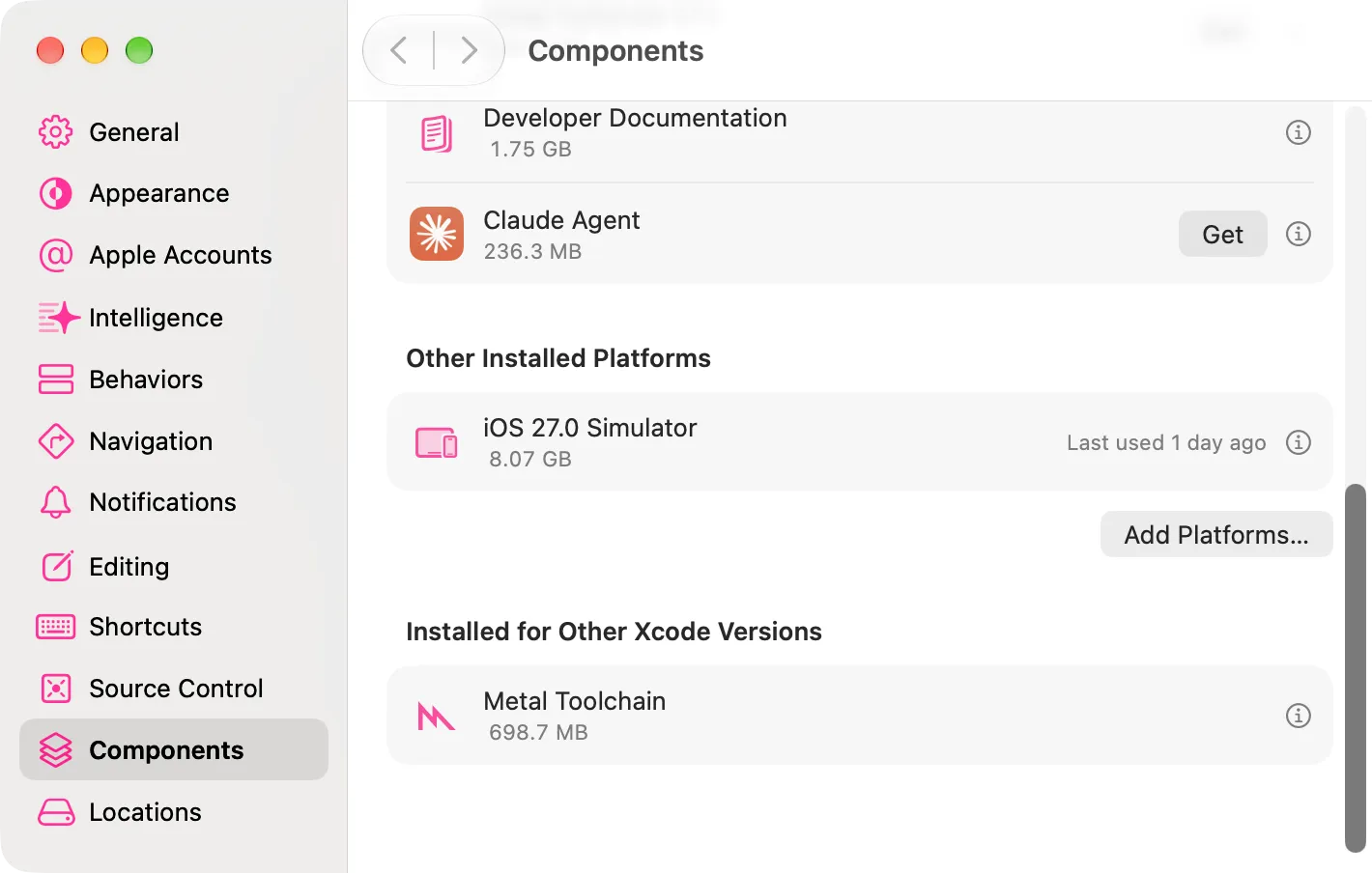
I don’t know why this delete worked when the last two didn’t. One difference I can see: in October I kept iOS 18.0, and this time I deleted it too. The iOS 27.0 runtime also has a new identifier, different from the one simctl showed on November 8.
If you don’t use Xcode
Then the simulators aren’t your problem, and AssetsV2 is probably much smaller. On my Mac, everything that wasn’t a simulator came to about 9 GB: Siri, language data, Photos, translation, fonts, dictionaries, update parts, and Xcode’s documentation and tools.
Some of those come from features you turned on. The translation folder, for example, is where offline languages end up, and Apple’s Language & Region settings guide explains that Translation Languages downloads languages so you can translate offline.
I haven’t found an Apple setting that clears the rest by hand, and with the folder protected there’s no safe way to do it yourself. If AssetsV2 is large on a Mac that never had Xcode, run the du command above and look at which folder is biggest before deciding anything. If it’s iOSSimulatorRuntime, someone installed Xcode at some point, and the simulator section above applies.
If AssetsV2 is in your Trash
This one confused me at first. The real folder can’t be moved, so how does it end up in the Trash?
In the Apple Community thread I found, it wasn’t the real folder. After wiping a failed drive and moving their files back, the poster had a folder on their desktop pointing into “Previously Relocated Items”, a folder the installer creates in the Shared folder (Macintosh HD, then Users, then Shared) for files it moved aside. Inside it was an old copy of AssetsV2. They dragged it to the Trash and couldn’t empty it.
On my Mac, that Shared folder has 24 of those “Previously Relocated Items” folders from past updates. Together they hold 1.3 MB, and none of them has a copy of AssetsV2.
If yours won’t empty, open the Trash, right-click the folder, and choose Put Back. A reply in that thread suggested moving the relocated items folder back into the Shared folder, which is where it came from. Your real AssetsV2 stays in /System/Library the whole time.
What Diskling shows here
Diskling lists each simulator runtime under Toolchains with its iOS version and size. It removes the ones you pick with Xcode’s own simctl, then measures the disk again so you see what really came back.
Before you delete a simulator, run du -sk on the simulator folder and write the number down. Run it again after the delete, and once more a week or two later.
Questions people ask
Is it safe to delete the AssetsV2 folder?
You can’t delete the folder, and you shouldn’t try. System Integrity Protection blocks it, even with sudo. The simulator runtimes inside it are safe to remove with xcrun simctl runtime delete or in Xcode’s Components settings. On my Mac, the four I deleted on October 28 were listed as Ready again 11 days later, and the folder didn’t get any smaller after that delete. A third delete, on November 15, did free the space, so check it with du afterwards.
Where is the AssetsV2 folder on Mac?
At /System/Library/AssetsV2. Run open /System/Library/AssetsV2 in Terminal and it opens in Finder. You can look around: there were 105 items inside on my Mac. macOS won’t let you move or delete any of them, and du couldn’t read six folders whose names start with UAF_FM_ and UAF_IF_.
Does macOS clean up AssetsV2 on its own?
Some folders do shrink. On my Mac, the documentation folder went from 1.6 GB on October 15 to 8 KB on November 8, and the macOS update folder held 8 KB. The simulator folder printed the same 51,553,840 KB on October 28 and on November 8.
Can I delete com_apple_MobileAsset_MacSoftwareUpdate?
No. ls -ldO shows it marked restricted, the same as AssetsV2 itself. On my Mac it held 8 KB on November 8, so there’s nothing to gain anyway.
Why is AssetsV2 so big on my Mac?
On a Mac with Xcode, almost always simulator runtimes. Each one is a full copy of iOS, around 8 GB, and old ones stay when Xcode adds a new one. On my Mac, the part that isn’t simulators is mostly Siri, language and Photos downloads, about 9 GB.
Will deleting simulators break Xcode?
Not if you keep the runtime that matches your Xcode. You can download any version again in Xcode’s settings, under Components.
Is AssetsV2 a virus?
No. It’s a standard macOS folder at /System/Library/AssetsV2, and macOS protects it with System Integrity Protection.

I'm the product manager for Diskling, which mostly means asking "but what if" until nothing breaks. I studied soil science before software, and outside work it's family, farming and whatever I'm learning next.
Comments
No comments yet. Tried this on your Mac? Tell me how it went.